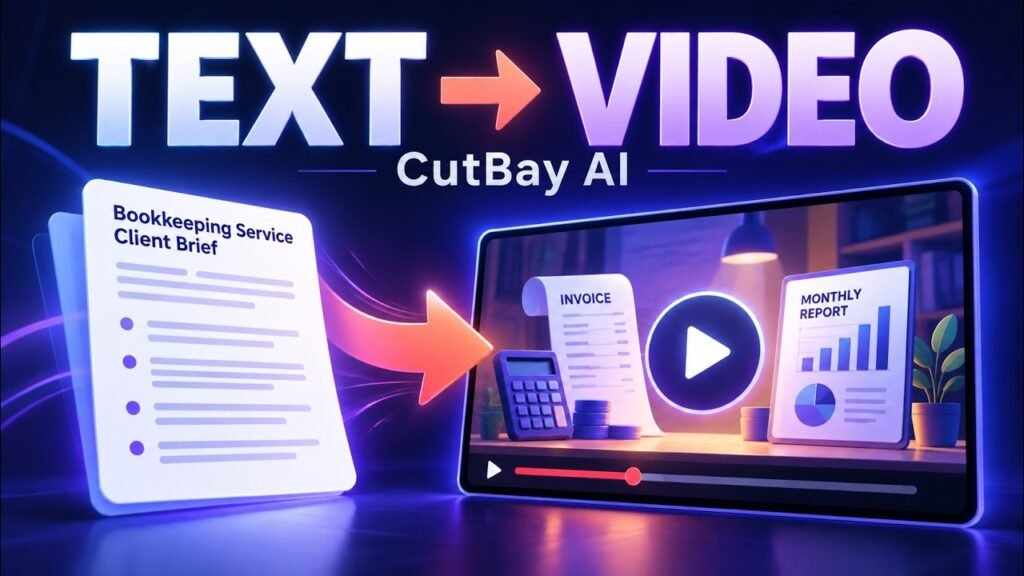

A potential customer may understand that you offer bookkeeping without knowing what you actually do each month. A useful explainer closes that gap: it shows the records the customer sends, the work your business performs and what comes back. That gives the viewer something more concrete than a list of services.
This CutBay AI tutorial follows a fictional business, ClearLedger Bookkeeping, from a written brief to a five-scene animated service explainer. We choose a narrator and music, review the proposed scenes, generate the video, make the closing invitation more specific and export. The example also shows why you need to check the result: the requested length was 45–60 seconds, while the generated player shows 1:13.6, about 74 seconds.
Watch the complete AI Stack walkthrough — 8 minutes 55 seconds.
Disclosure: CutBay provided complimentary credits as part of a collaboration for this demonstration.
Open CutBay to follow along. ClearLedger is a fictional demonstration business, not a real bookkeeping offer or financial advice.
What CutBay does in this workflow
CutBay is a browser-based AI video tool. Its official workflow describes turning a brief or supplied material into a plan, generating visuals, captions, voiceover, music and animation, then refining the result through chat. This tutorial uses the New Chat route, often described as Chat to Video. It does not start from a Motion Graphics template or use the separate Talking Head Editing workflow. CutBay workflow overview.
The practical starting point is a service story you can verify. For this example, the customer sends records and statements; ClearLedger categorizes transactions and matches them with those statements; the customer receives a monthly income-and-expense summary and questions about unclear items. Tax preparation and payroll are excluded. Those boundaries matter more than how elaborate the animation looks.
Before you begin
Have a CutBay account and a short, approved description of the service you want to explain. You can reproduce this fictional example with text alone; it does not need real client records, bank details, presenter footage or an uploaded logo. For a real business, use only information and assets you have permission to provide.
Check the current credits and generation cost shown in your account before committing. CutBay says it offers trial credits, but the credit requirement varies with the settings and content. This walkthrough is not a fixed-price quote or a measure of how long a fresh generation will take. Trial access · How generation credits work.
Step 1 Start a new chat with a specific service brief
Select New Chat in the sidebar. The distinction is useful: although the output contains animated graphics, this demonstration creates the video from a written request rather than filling in a ready-made Motion Graphics template.
Give the AI the audience, purpose, service facts and exclusions before describing the visual style. “Make a bookkeeping video” could produce a general accounting lesson. The tutorial instead asks for a customer-facing explanation aimed at small service-business owners visiting a service page.
The five-part story has a clear job for each scene: establish the scattered-records problem, introduce ClearLedger, explain the process, show the customer’s deliverable and invite the next step. Short labels carry the visual structure while the narration explains the relationship between the steps.
Copy the complete prompt used in the recording:
Initial service explainer prompt
Create a customer-facing animated service explainer for fictional ClearLedger Bookkeeping. Target 45–60 seconds, landscape 16:9. Audience: owners of small service businesses visiting a service page. Explain the offer, not an accounting lesson.
Use only these facts: customers have receipts, invoices and transaction records in different places. ClearLedger provides monthly bookkeeping. Customers send records and statements. ClearLedger categorizes transactions and matches them with the statements. Customers receive a monthly income-and-expense summary and questions about unclear items. Tax preparation and payroll are not included.
Use five scenes: recognizable problem; introduce ClearLedger; explain the process; show the customer’s deliverable; invite the next step. Use readable short labels, animated icons and a connected process diagram, not stock footage, a presenter or an avatar. Use navy #0A192F, white #FFFFFF and teal #2DD4BF consistently. Add an unobtrusive “Fictional business demo” label. Use calm English narration, synchronized captions and quiet music.
Do not invent prices, savings, testimonials, credentials, guarantees, deadlines, contact details or additional services. Do not show real-looking bank account numbers or client information.
Use this voiceover as the wording reference and preserve its facts: “Receipts in one place, invoices in another, and transactions still to sort out? ClearLedger Bookkeeping helps small service businesses organize their monthly books. Send your records and statements. We categorize the transactions and match them with your statements, then prepare a monthly income-and-expense summary. You receive the summary and our questions about anything unclear, so you know what still needs attention. Instead of gathering the same scattered information again, you have an organized monthly starting point. This package covers monthly bookkeeping; tax preparation and payroll are not included. Get started today.”
First show the proposed scenes, labels, full narration, voice and music choices, duration. Do not generate or render the video until I explicitly confirm.
The final sentence asks to see the plan before generation. Treat that as a workflow instruction, not a guarantee that planning or later revisions are free. Review the account’s actual controls and any displayed cost before continuing.
Step 2 Preview and select the narrator and music
After the prompt is submitted, CutBay presents narration and background-music choices. Play the previews rather than choosing only by the name. In the recording, the narrator is Darren and the music bed is Vista Carries Through Calm Lesson. Select the choices you want, then click OK.
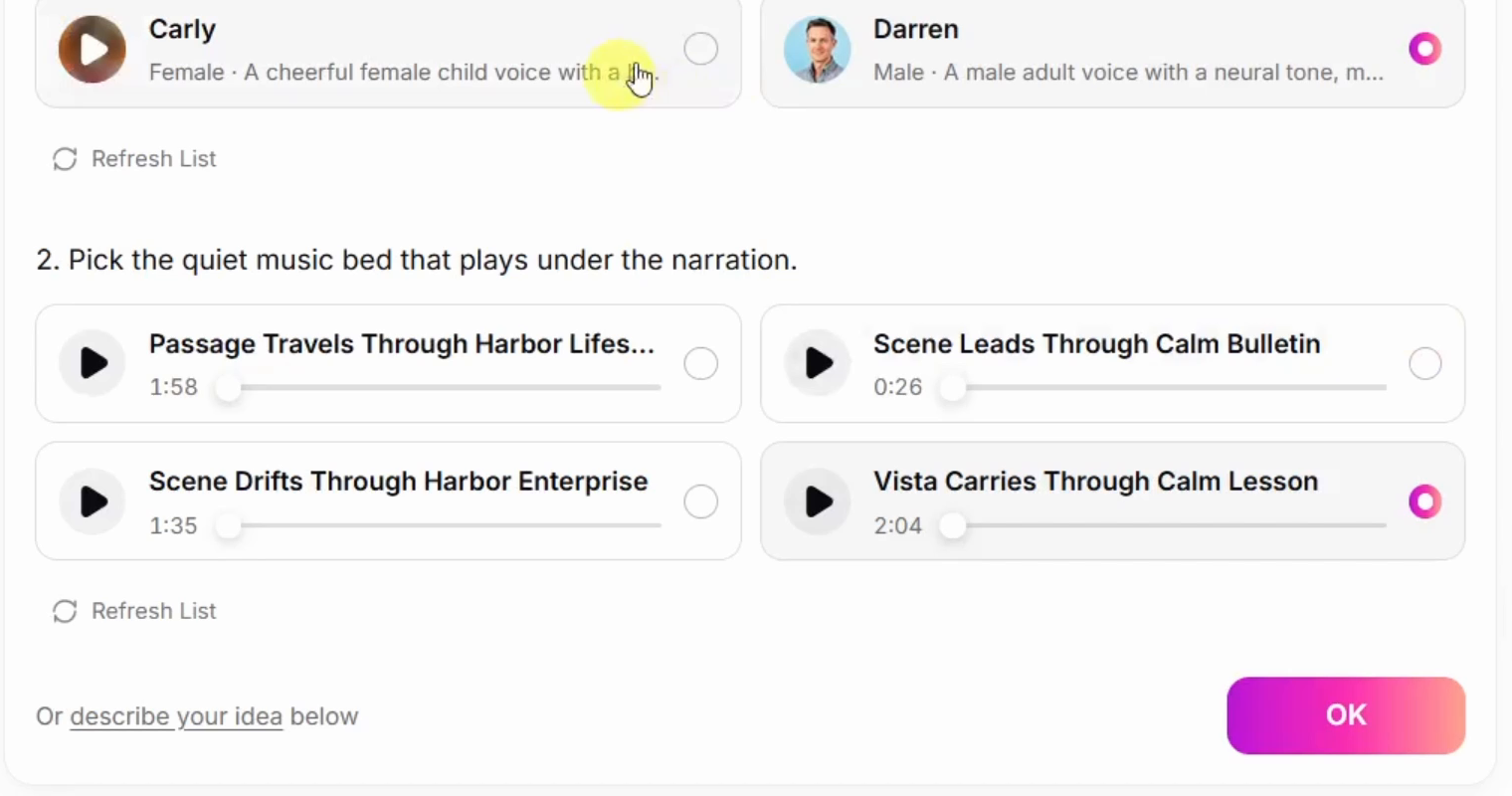
Those are the options used in this account at recording time, not a promise that every account will show the same list. The screen also offers Refresh List. If the names differ, preserve the intended direction: understandable English narration with music that leaves room for the voice. You will still need to judge the mix in the generated video.
Step 3 Read the scene plan before generating
Review the returned video brief, including the audience, intended placement, landscape 16:9 format, palette and selected audio. Then read every scene’s visual description, on-screen content and voiceover. Look for unsupported claims, missing exclusions or a deliverable that no longer matches the service.
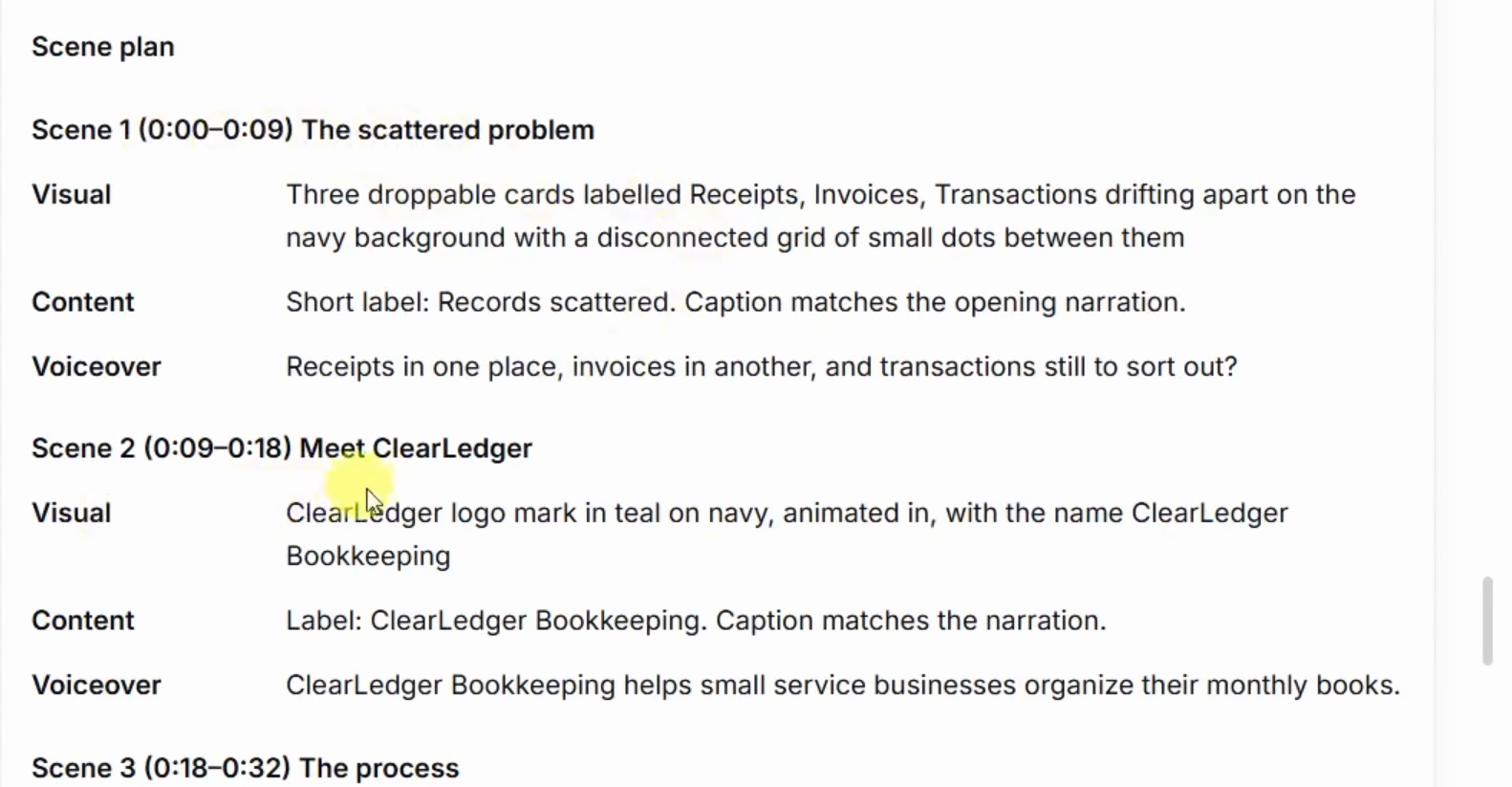
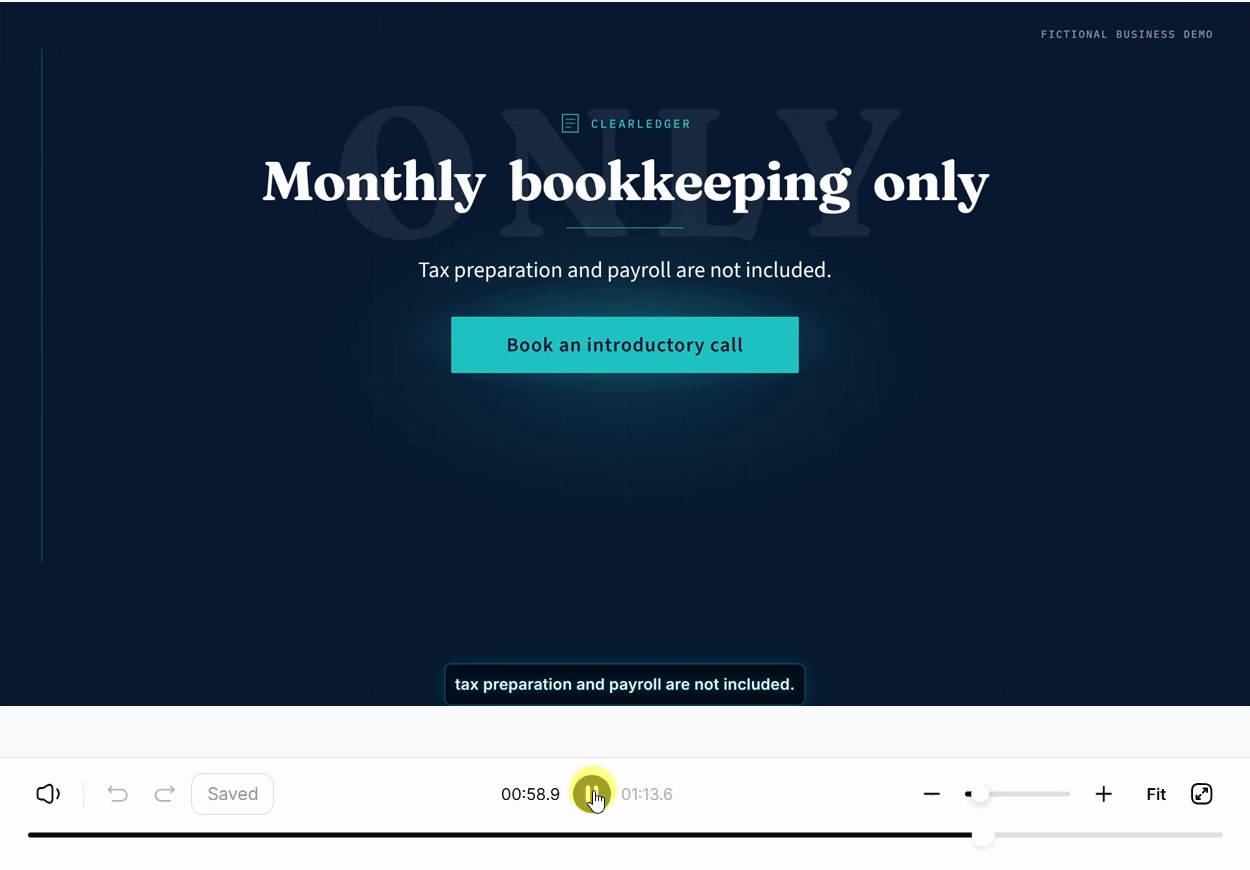
The recorded plan starts with The scattered problem and Meet ClearLedger, then moves through the process and monthly deliverable to a closing scope note. The final scene keeps “Monthly bookkeeping only” and the tax-preparation and payroll exclusions alongside the initial invitation, “Get started today.”
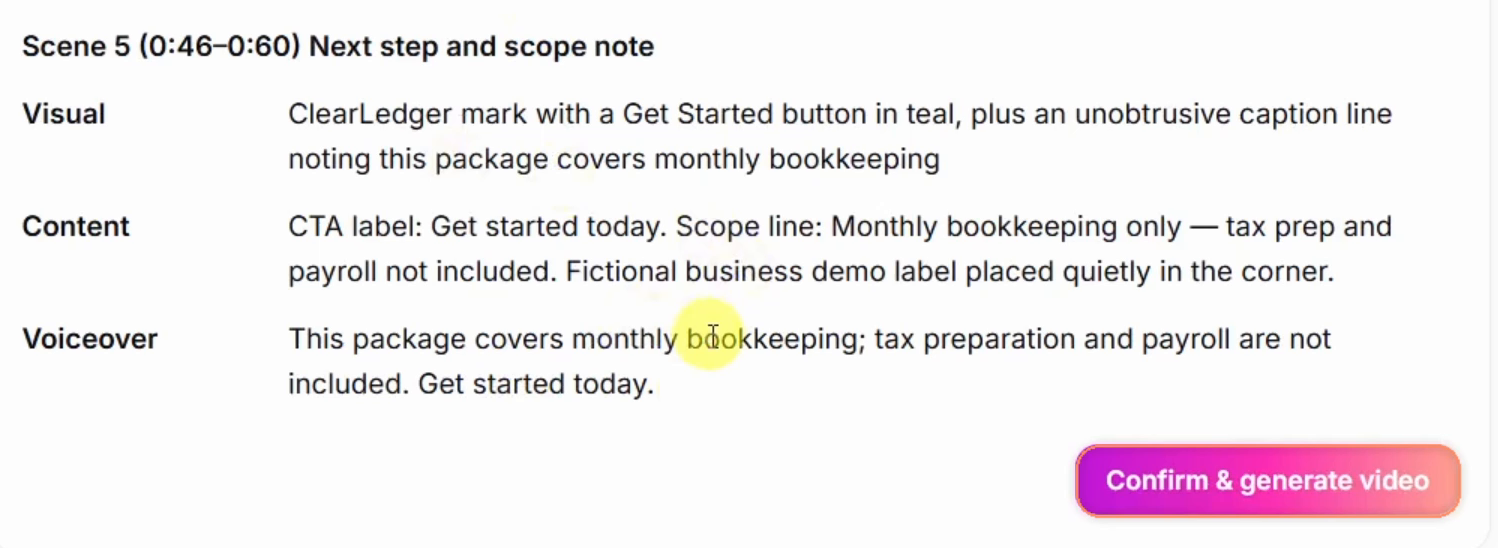
Correct factual problems while you are still reviewing the plan. When the content and choices are right, select Confirm & generate video. This plan-first sequence is also described in CutBay’s project-creation guide. A plausible plan is not proof that the finished animation will follow every instruction.
Step 4 Review the generated explanation and its actual length
Play the generated video from the beginning. In the process scene, the result uses connected icons for Send records, Categorize and Match statements. That sequence makes the service easier to follow than putting the whole description on one slide.
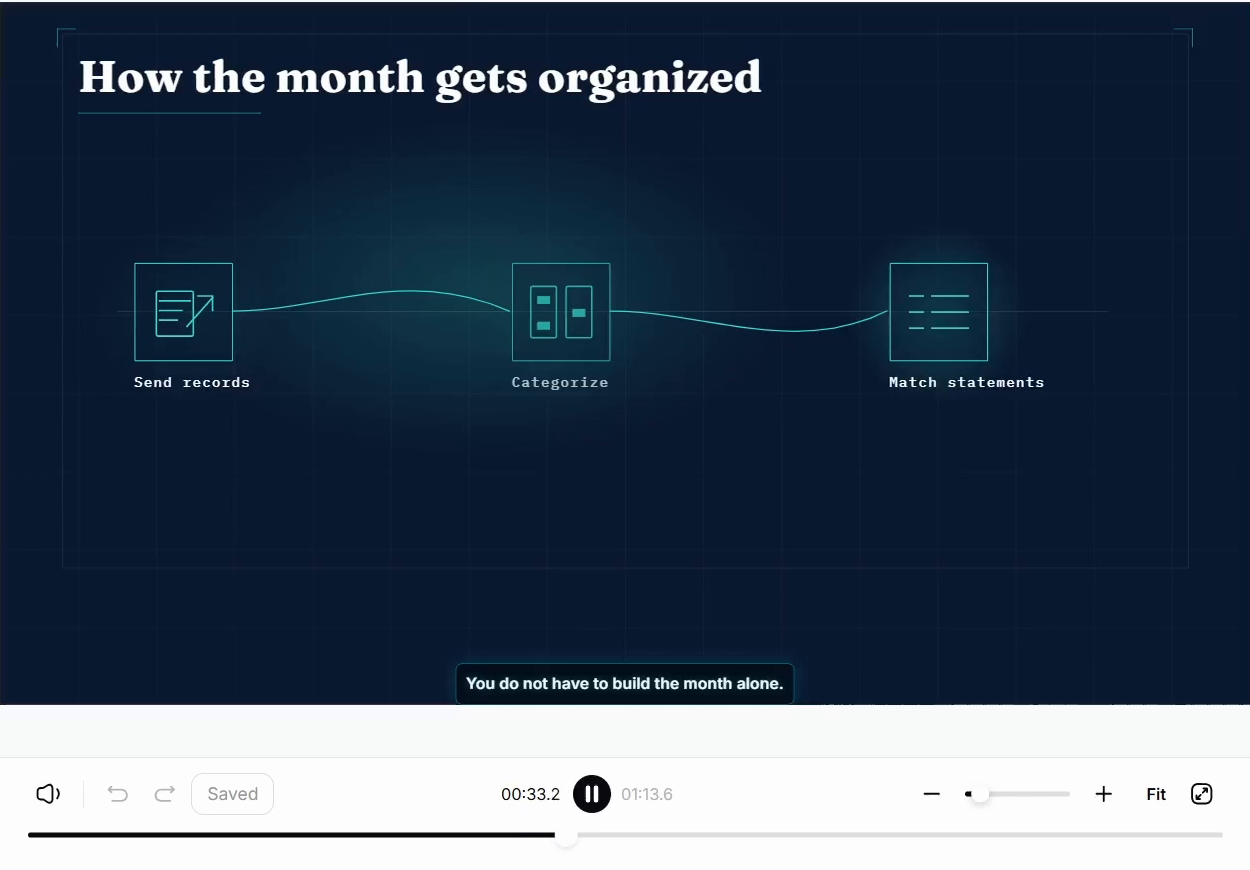
Notice the difference between the requested duration and the result. The prompt targeted 45–60 seconds, but the player shows about 74 seconds. If you need a strict 60-second deliverable, shorten the narration and regenerate or revise it, then check the new duration. That is a suggested next step, not a shorter version demonstrated in this tutorial.
Watch once with sound and once with the sound muted. Check that the service facts remain correct, the labels can be read before they change, and the captions do not compete with the main text. Listen for pronunciation, abrupt changes and music that masks the explanation. Review the entire result rather than treating the completion ticks in the chat as a quality check.
Step 5 Replace a vague closing with a clear next step
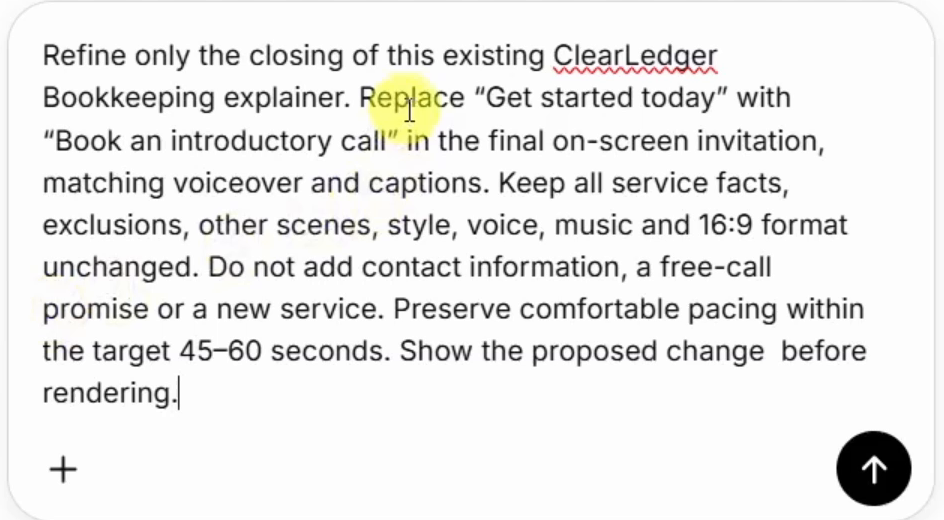
The original closing says Get started today. That is an invitation, but it does not tell a first-time visitor what starting involves. The tutorial changes it to Book an introductory call, a more specific action for someone still deciding whether the service is a good fit.
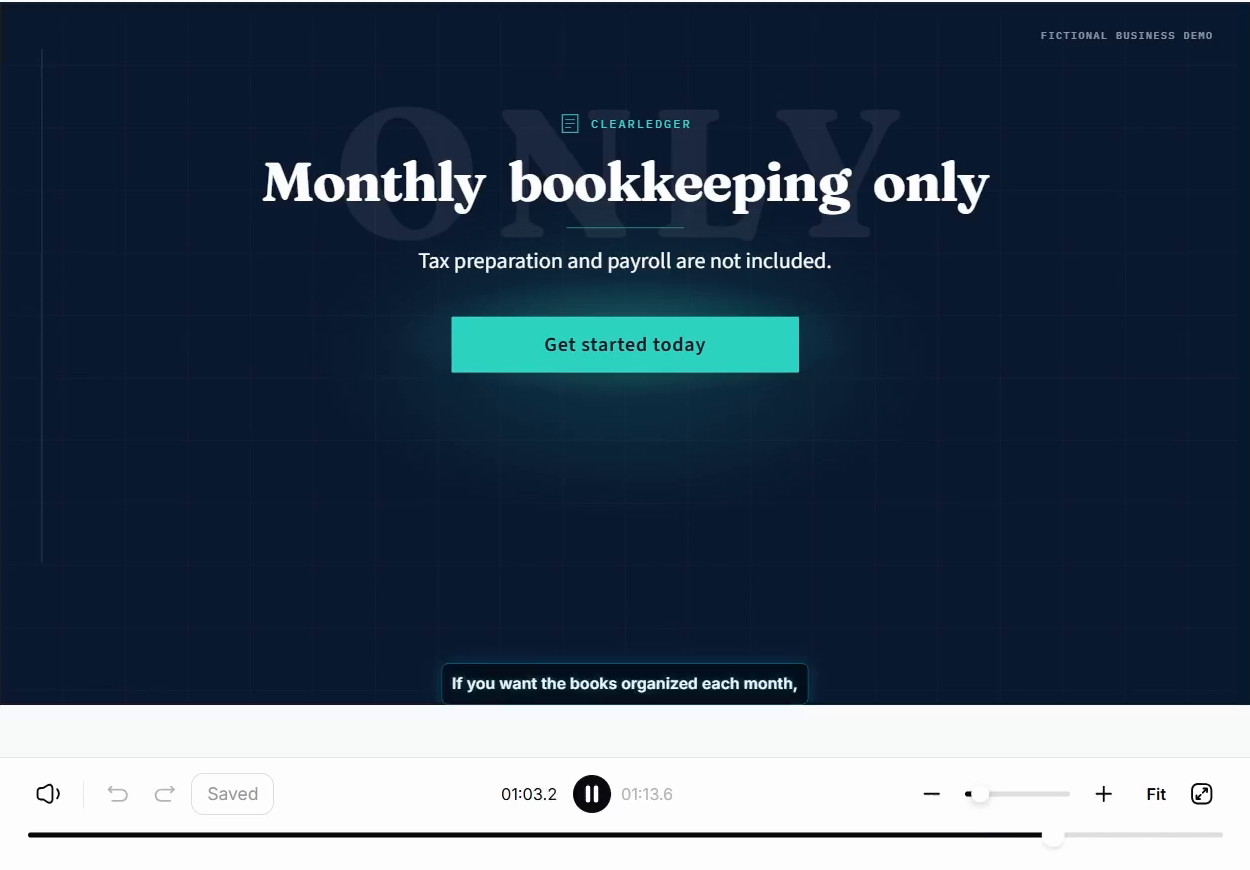
Use a focused revision request rather than asking the AI to remake the whole video:
Closing revision prompt
Refine only the closing of this existing ClearLedger Bookkeeping explainer. Replace “Get started today” with “Book an introductory call” in the final on-screen invitation, matching voiceover and captions. Keep all service facts, exclusions, other scenes, style, voice, music and 16:9 format unchanged. Do not add contact information, a free-call promise or a new service. Preserve comfortable pacing within the target 45–60 seconds. Show the proposed change before rendering.
The revised on-screen invitation is visible in the finished tutorial. Check the spoken line and captions separately: a changed button does not establish that every audio or subtitle element changed correctly. The finished tutorial includes a corrected closing, so do not treat the edited demonstration as a guarantee of an instant, perfect one-message revision.
For your own business, choose an action you can actually support. Do not add “free consultation,” a working booking link or a new service unless those details are true and approved. CutBay documents chat-based changes to text, style, length, layout and audio, but you remain responsible for checking what a particular request changed. Editing a generated video.
Step 6 Export and inspect the downloaded file
Select Export at the top of the project. The tutorial leaves the displayed settings at MP4, Standard quality, 30 FPS and 1080p, then selects Start export. These are the generated explainer’s selected export settings, not a claim about the recording settings of the YouTube tutorial.
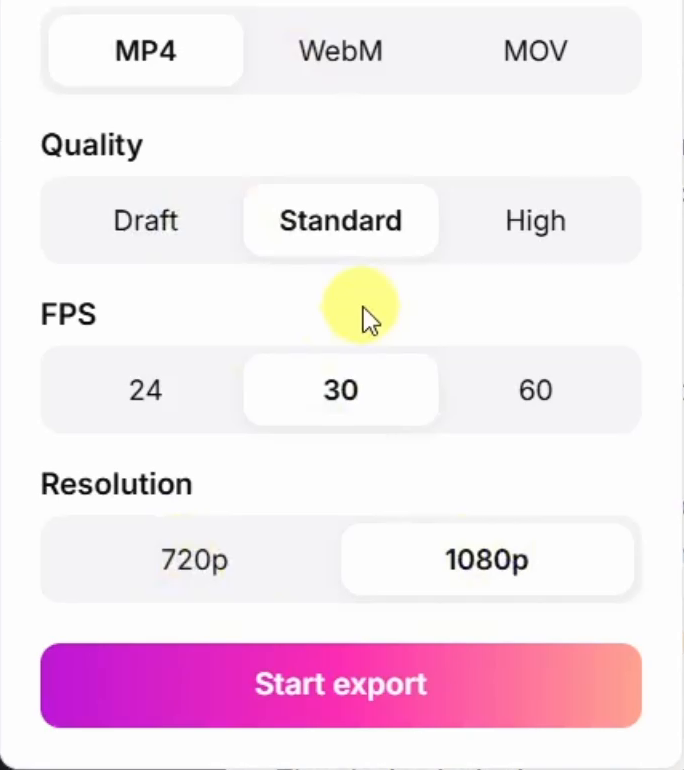
The recording reaches an Export Successful dialog with a Download video button. If the automatic download does not start, use that button. CutBay’s documentation also describes these export controls, but check the options available in your current account. Saving and downloading a video.
Before you use your own export, reopen the downloaded file and play it completely. Confirm the picture, sound, captions, ending and duration, rather than assuming the download matches the preview. For a real service page, the invitation in the video should agree with the actual booking button beside it. The tutorial suggests this placement; it does not demonstrate publishing the explainer to a live business website.
Check plan rights before using it for business
Do not assume that trial access includes commercial use. At the time of this article, CutBay’s help center says Pro and Ultra subscribers may use videos made with its stock resources and features commercially, while free users may not commercially use its stock resources or generated content. You must separately confirm rights to material you upload. CutBay commercial-use rules.
The provider also says free-account exports have a watermark, while Pro and Ultra exports do not. Verify the current plan terms and the actual downloaded file before client delivery or publication. This is not a claim that every AI output is exclusive or copyright-free. Watermark guidance.
Start with the service story
The most useful part of this workflow is the brief: who the customer is, what they send, what your business does, what they receive and what they should do next. CutBay turns that structure into a video you can review and refine. Keep the factual boundaries clear, measure the actual runtime and check each revision before exporting.
For more practical AI workflows, prompts and resources, join the free AI Stack community. Use the full video above to follow the demonstrated choices and compare them with your own result.