A client asks what to send, when the first draft will arrive, and what happens next. Your welcome deck already answers those questions—but someone still needs to explain it. Google Vids is Google’s browser-based video creation tool. In this tutorial, we use its Slides to video workflow to turn a welcome deck into a narrated onboarding video, with the speaker notes providing the explanation.
I used a six-slide welcome deck for BrightPath Studio, a fictional marketing agency. It explains what clients need to send, when work starts and what happens next. Here’s how I turned it into a video, then edited the labels and closing narration.
What to prepare
Start with a Google Slides presentation containing concise slide text and complete speaker notes. Our example has six slides: welcome, required materials, kickoff, draft and review timeline, included revisions, and next steps. Keep your real deadlines and service conditions in both the relevant slide and its notes.
You also need access to the Slides-to-Vids conversion workflow in your Google account. Google’s current help identifies an eligible Google Workspace or Google AI plan for the AI-assisted import; check your account’s available features before starting. This guide follows the controls shown in our recording; availability and interface details can differ by account. Google’s conversion help is available at Google’s Slides-to-Vids conversion guide
1. Check the deck before converting it
The BrightPath example asks the client for brand assets, an audience-and-offer brief, and one approval contact. A twenty-minute kickoff follows when the materials are ready.
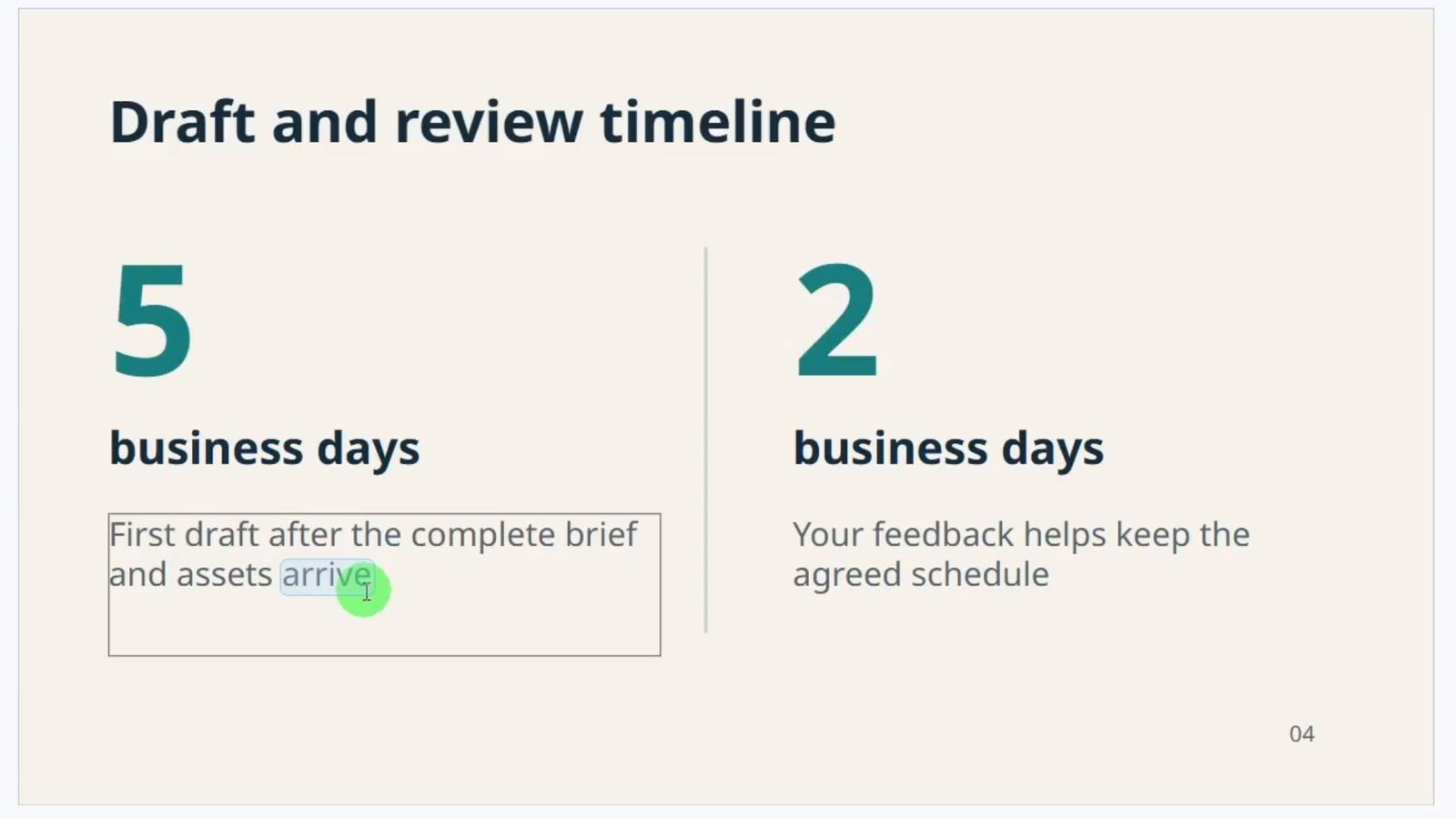
Its first-draft promise is conditional: five business days after receipt of the complete brief and assets. Sending a logo alone does not start that clock. The deck also requests feedback within two business days and includes one consolidated revision round, with extra requests agreed separately.
Replace BrightPath’s sample deadlines and revision terms with your own before sending the video to clients.
2. Select the slides and review the script
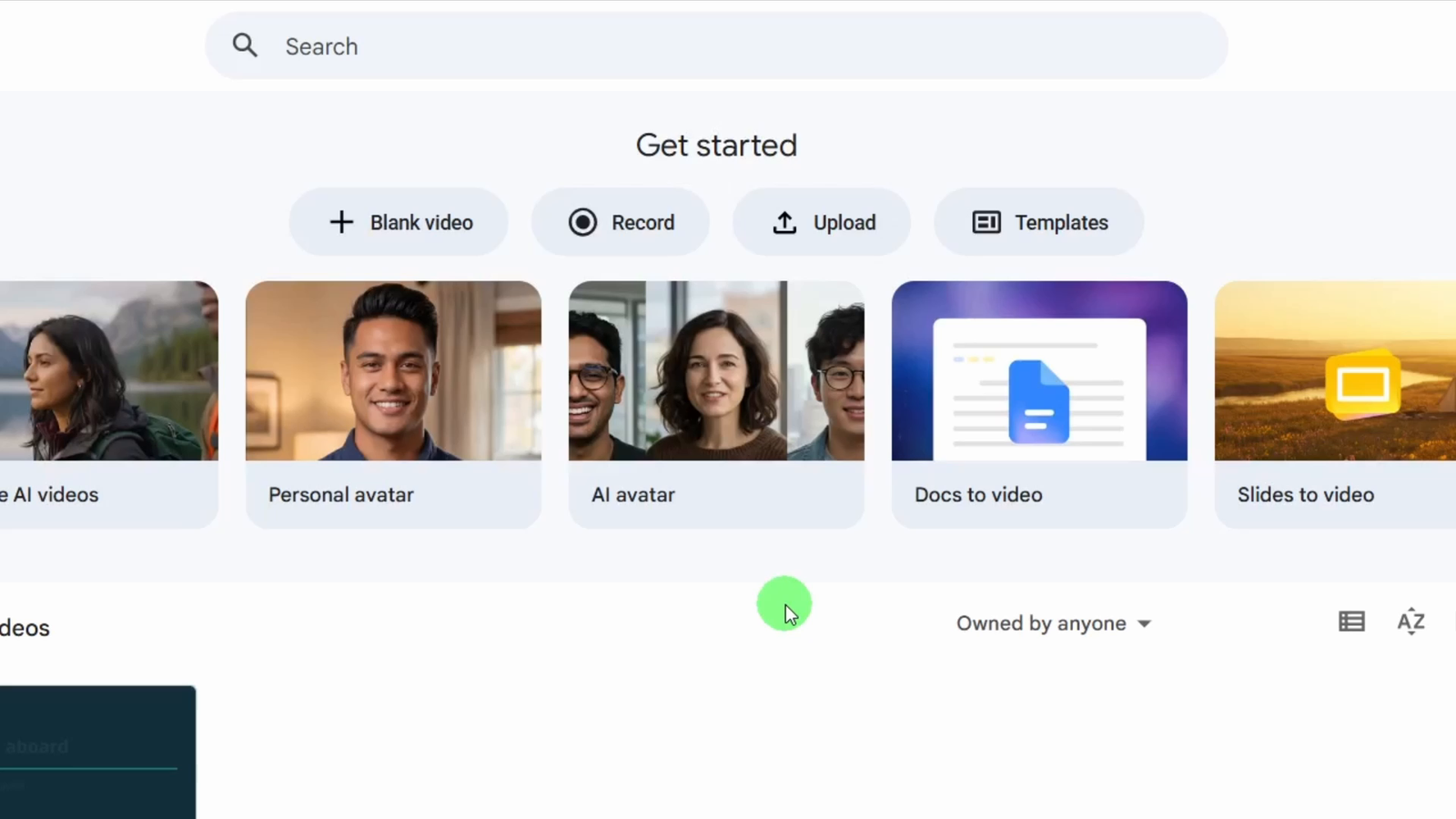
On the Google Vids home screen, select Slides to video. Choose your prepared presentation and click Select. In the slide-selection screen, keep the six intended slides checked and leave Include AI voiceover, script, background music and animation enabled. Click Next to reach the script review.
The next screen shows a script for each slide. Read through it before creating the video, especially any sentence about deadlines or what the service includes.
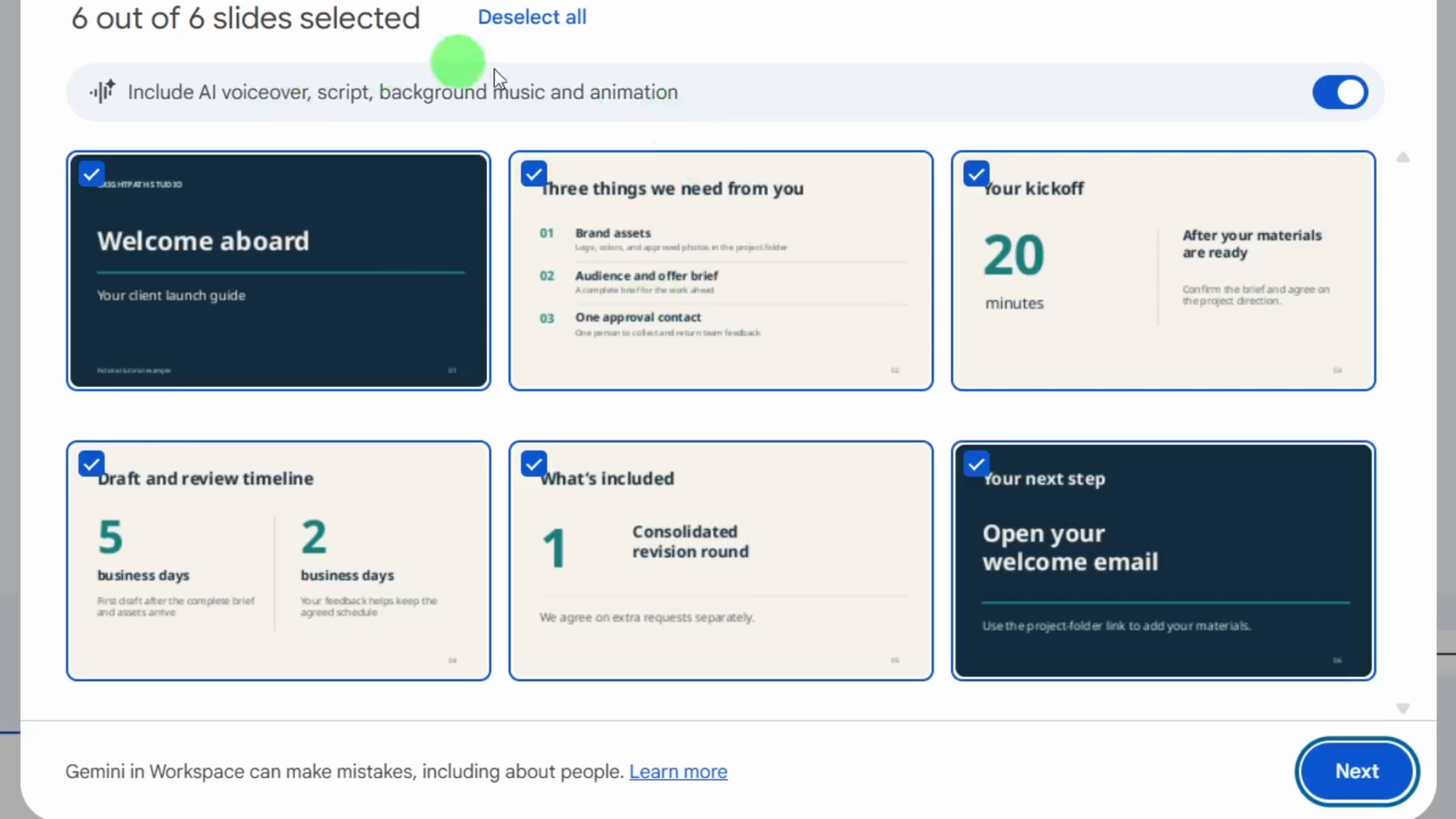
I chose “Replace with speaker notes” because I had already written the explanation I wanted. Check the timeline scene after switching: it should still say that the five business days start after the complete brief and assets arrive.
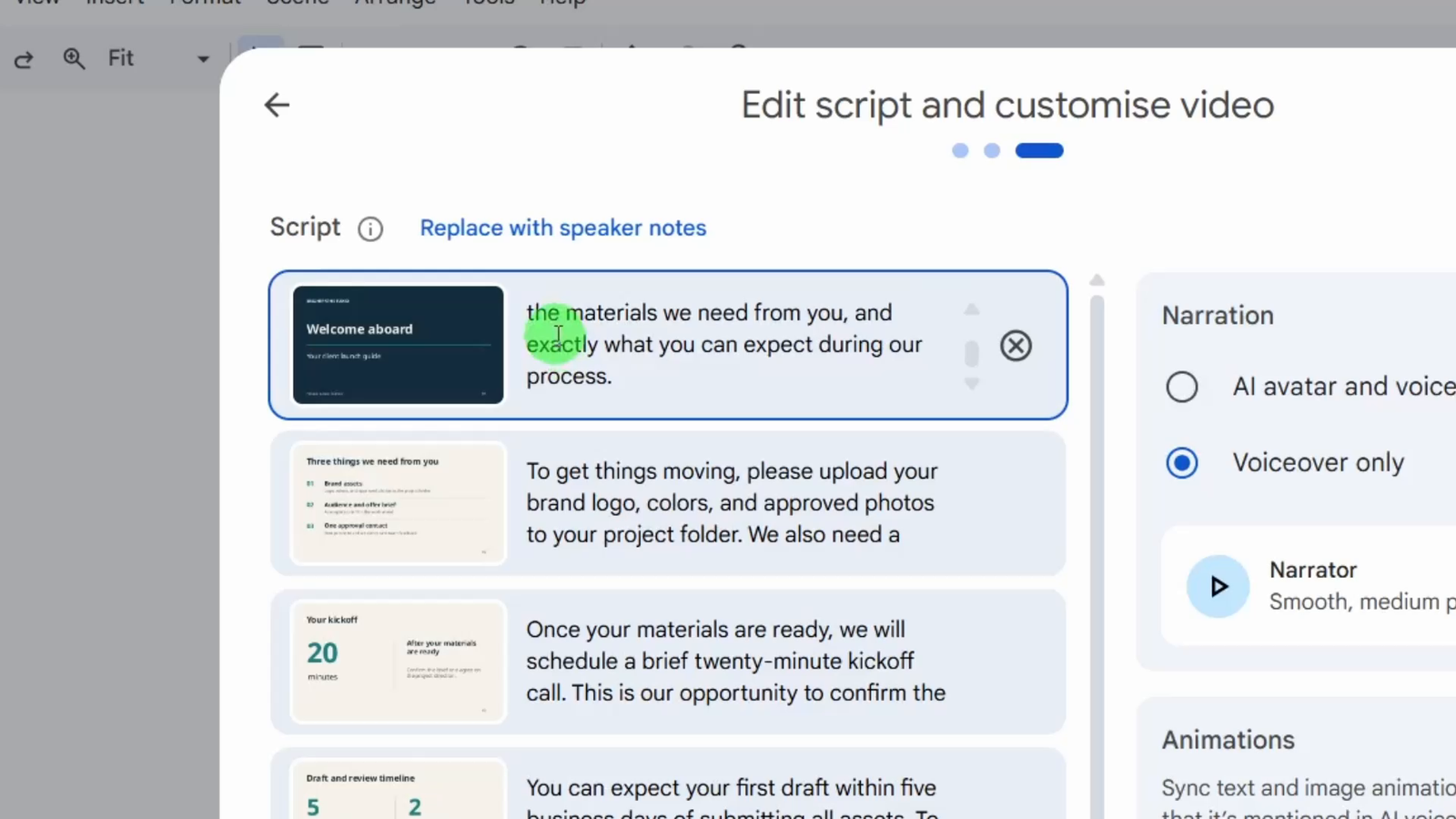
Google describes the pre-draft script editing and speaker-notes option here: Google’s script-editing announcement
3. Choose voiceover and create the draft
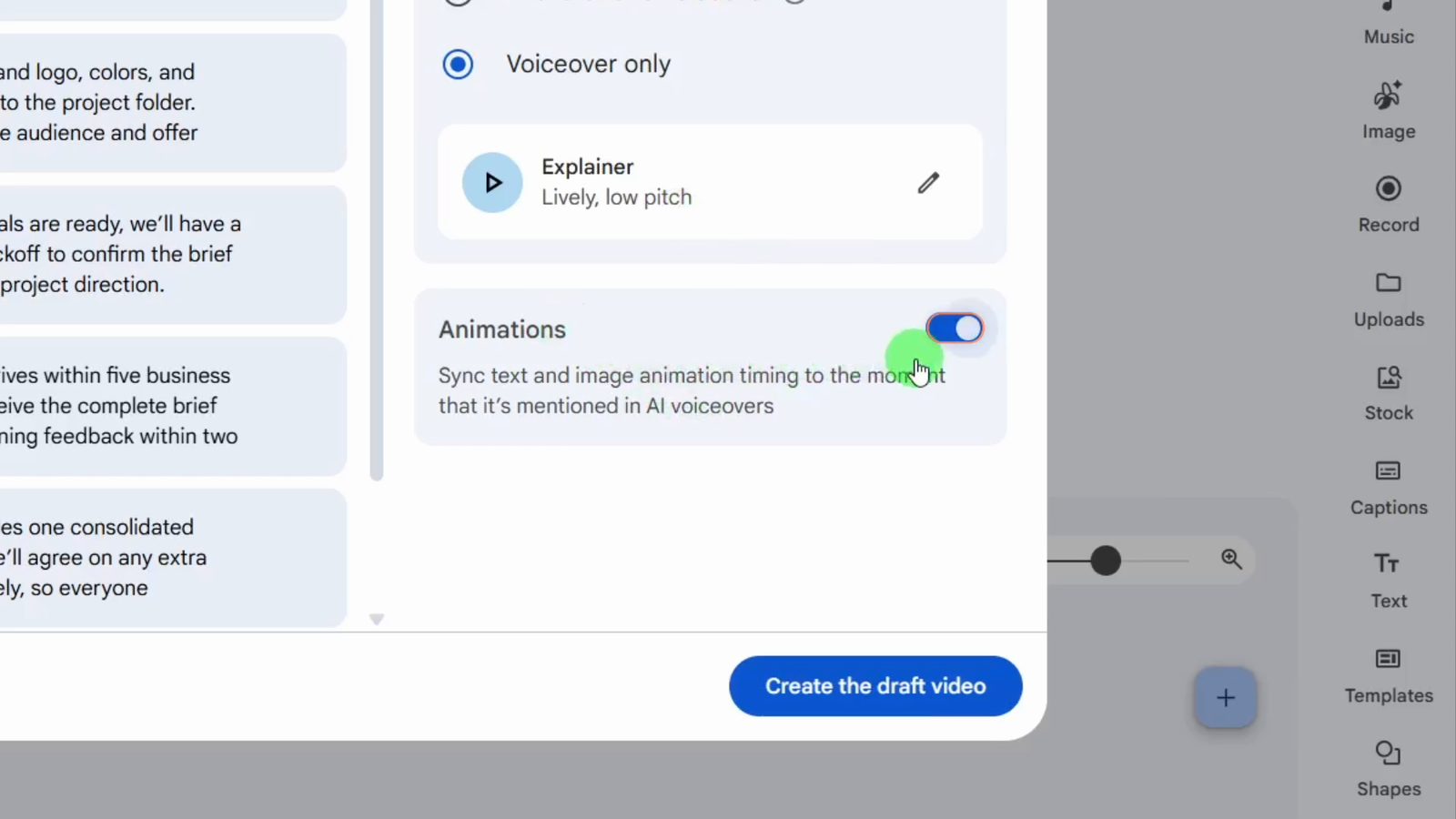
Select “Voiceover only” to follow this example. The client sees the slides while the narrator explains each step.
Use the pencil control on the voice card to open the voice choices. In the recording, we select Explainer, described as Lively, low pitch, and confirm with Use this voiceover. Play its sample before continuing. Leave Animations switched on, then select Create the draft video. The editor opens with the imported slides arranged as scenes.
When you preview the result, listen to how the voice says your business name and any numbers.
4. Make the on-screen instructions easy to scan
Select the second scene and edit its heading text directly. We change Brand assets to Send assets, Audience and offer brief to Complete brief, and One approval contact to Choose approver. Keep the supporting text underneath. The existing narration already explains those actions, so this heading-only edit does not need new narration.
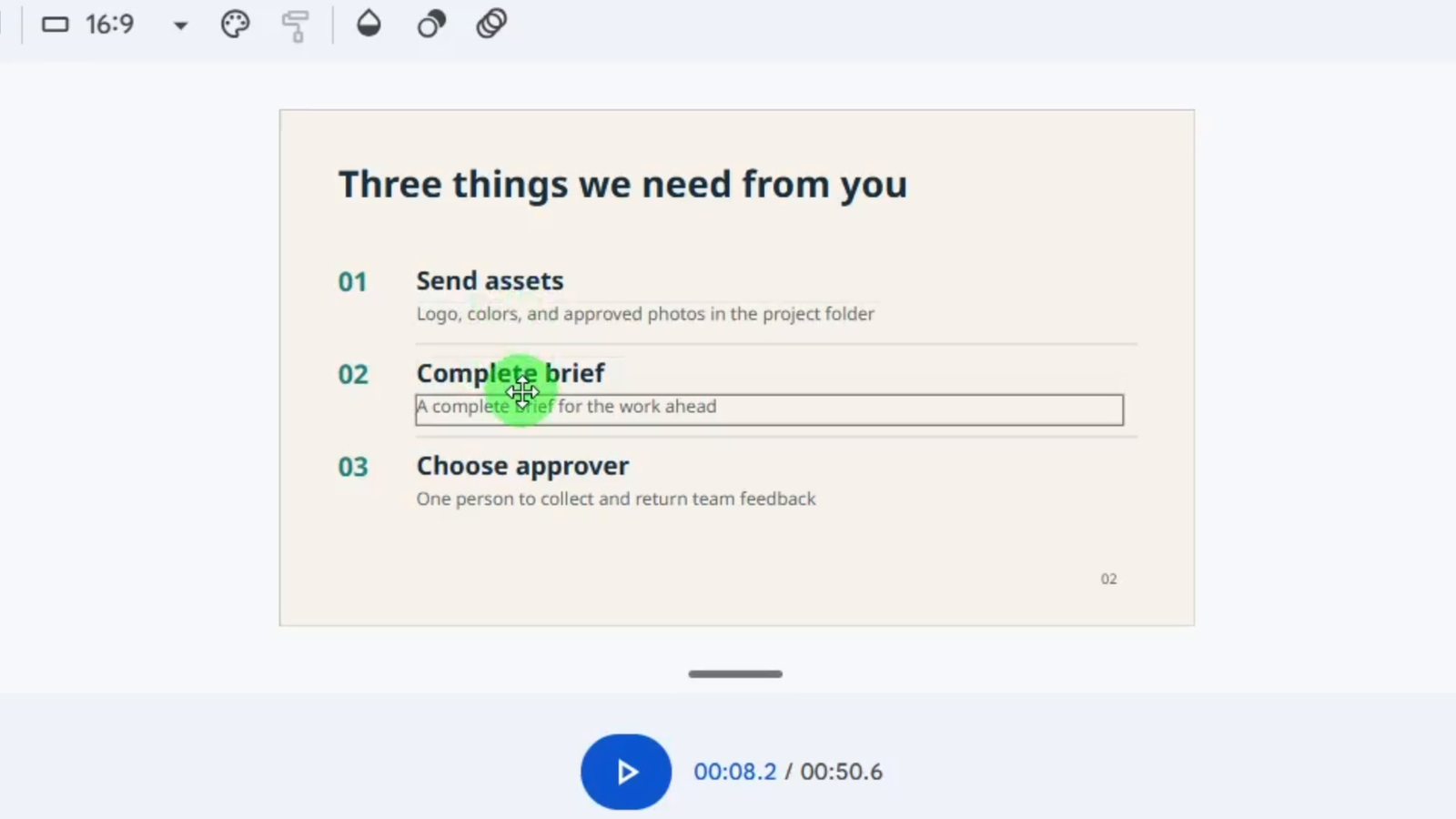
Later, the closing scene gets a single action line: “Send assets, Complete brief, Name your approval contact.” The next step is to make its narration match that clearer instruction.
5. Change the closing message and update the voiceover
For the closing scene, I used this narration:
“Start with the project-folder link in your welcome email. Send your assets, complete the brief, and name your approval contact. Then we can schedule your kickoff.”
Select the closing scene, open Voiceover in the right toolbar, and keep Current scene selected. Replace the old closing script with the text above. The old version began “To get started, open the project-folder link in your welcome email” and ended “We’re ready when you are.” The new version names the three actions and explains that kickoff follows.
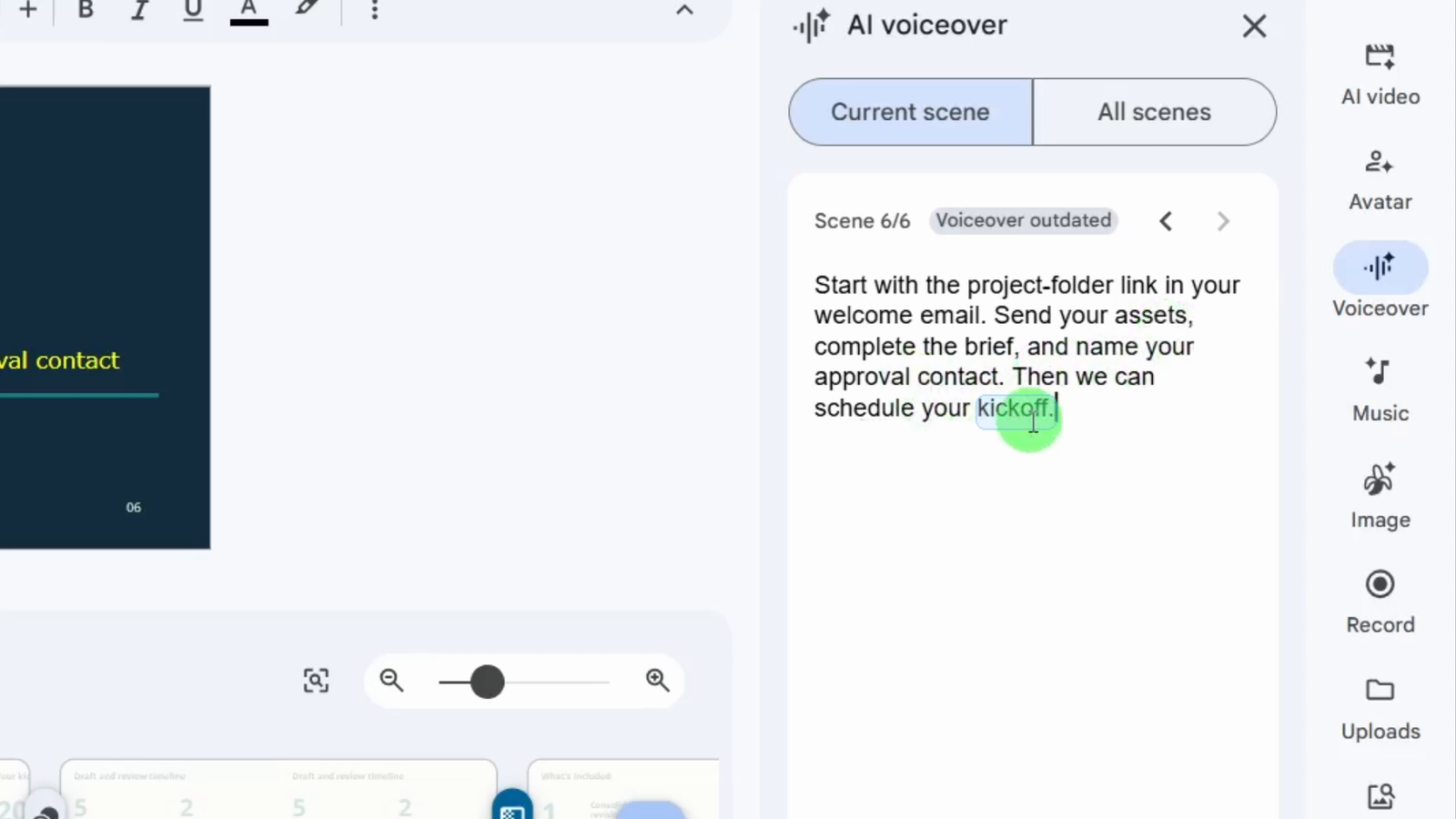
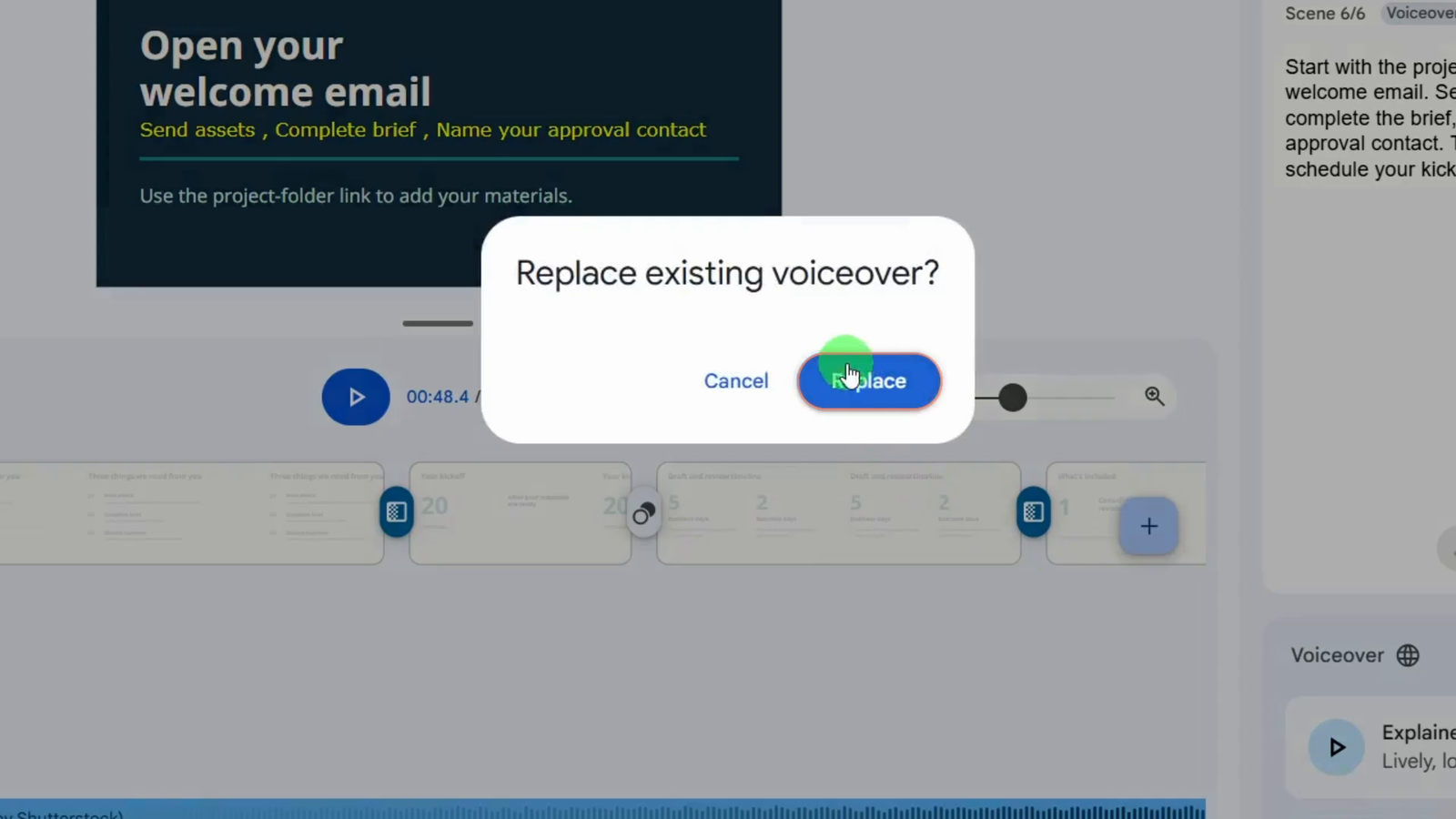
After the edit, the panel shows Voiceover outdated. Click Update voiceover, then Replace in the confirmation dialog. Replay the scene and listen for the new closing line. Leave Current scene selected so the update stays focused on this scene.
6. Listen for conditions and pacing
Replay the twenty-minute kickoff, the five-business-day first-draft condition, and the two-business-day feedback request. Confirm that the narration clearly ties the first-draft clock to receiving the complete brief and assets.
Also listen at scene boundaries. A sentence should finish cleanly before the next scene begins. If a passage feels rushed, simplify its wording without deleting a condition, update the voiceover, and replay it. Check the resulting scene length rather than assuming every imported slide needs the same duration.
7. Export and check the finished file
Preview the entire video. When you’re happy with it, open the arrow beside Share and select Download as MP4.
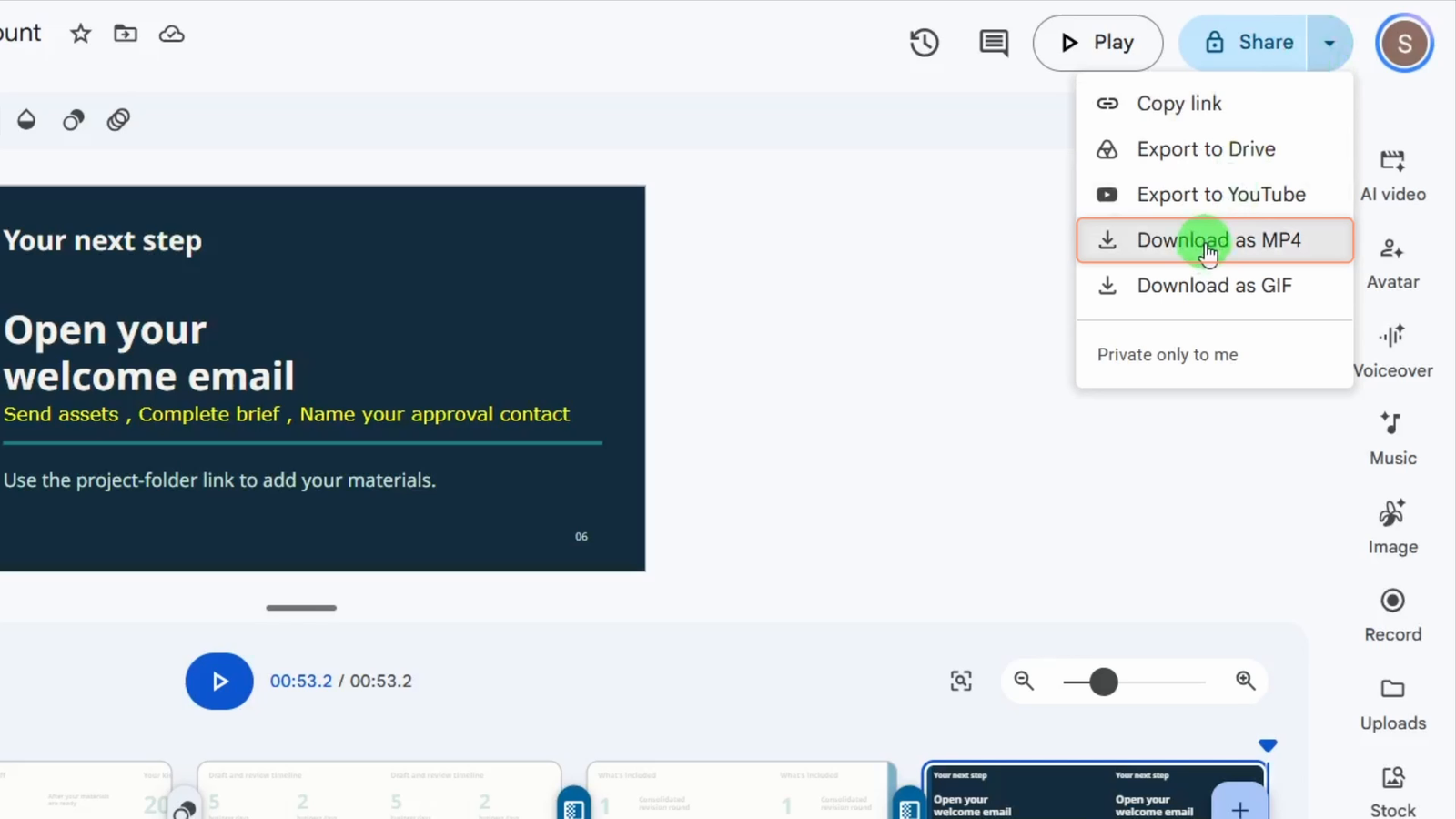
As a final delivery check, open your downloaded file separately and play it through. Check the beginning and ending, the revised closing narration, and the scenes containing deadlines. Keep the editable Vids project so future changes to your process can be reflected in the video.
Before sharing, check that your welcome email contains the project-folder link mentioned in the video.
Your final review checklist
- All intended slides are present and readable.
- The spoken deadlines retain their conditions.
- The revised scene plays the revised audio.
- Names and numbers sound clear.
- Sentences finish before scene changes.
- The exported MP4 plays correctly outside the editor.
- The next step matches your real onboarding process.
You can send this video alongside your welcome email, giving clients a walkthrough they can replay. When your process changes, update the relevant scene and its voiceover in the saved Vids project.
Join my free Skool community for AI tool resources: https://www.skool.com/ai-stack-9099