When you make tutorials or explain a business tool, deciding what to put in the thumbnail can be harder than writing the title. In this Thumbs.ai walkthrough, I turn a video idea into several visual options, add my own face, and compare the results. You can start with a written scene or an existing thumbnail as a reference.
The examples follow my recorded demonstration, whose interface and saved creations show June 15, 2026. The screenshots below are actual frames from that video, with timestamps so you can follow along. I checked the official product and pricing pages on October 29, 2026; current controls, credits, and offers may differ from the recording.
Watch the full Thumbs.ai walkthrough if you prefer to see each click. For the companion video overview, visit my existing guide to creating YouTube thumbnails with Thumbs.ai.
Affiliate disclosure: I may earn a commission if you purchase through my Thumbs.ai link. The examples below show the workflow and generated images, not measured results for views or click-through rate.
Before you start
Have a clear video topic, a face image you have permission to use, and an optional reference thumbnail. The recording starts with an existing face library; it does not show the initial face setup. If you are starting from scratch, follow the current face-creation prompts before selecting that face in the thumbnail builder.
Use your own images or references you are entitled to use. A reference is useful for communicating a composition, but importing it does not establish permission to reuse another creator's artwork, likeness, or branding.
The official thumbnail-maker page currently describes text and image inputs, face options, and landscape or vertical output. The steps below use the recorded interface so you can match them to the video.
Step 1 Describe a specific thumbnail scene
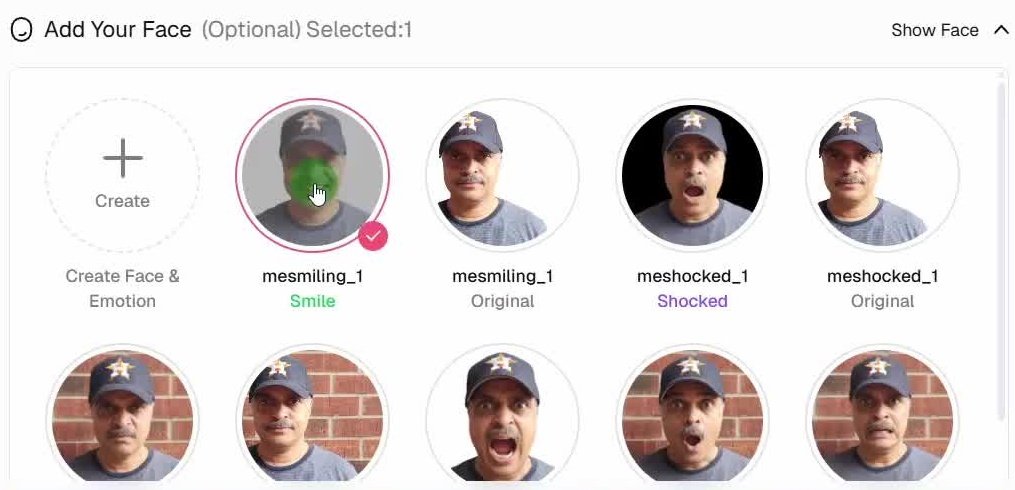
Open Create Thumbs and choose Text to Thumbnail. In the prompt field, describe what the viewer should see, rather than entering only a broad topic such as finance. At 01:15, I use a stock-market-loss concept with a shocked person, a phone, a falling chart, and a dramatic background.
The prompt in the demonstration reads:
A person holding his head in complete shock and disbelief, staring at a smartphone screen. The smartphone screen shows a massive stock market line graph plunging straight down into a sea of red. In the background, a clean modern house or luxury car is literally dissolving or turning to ash. Use bright, saturated colors (bright reds and neon greens) to make it pop off the screen.
For your own video, replace the scene rather than copying this topic. Name the subject, the action, and the main object that explains the story. Keep the premise consistent with what your video actually contains.
Step 2 Choose a face from your library
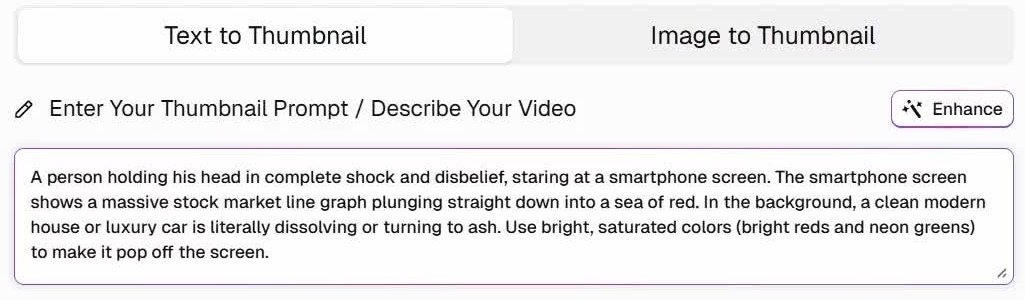
Expand Add Your Face. At 01:25, the library shows several saved expressions, including Smile and Shocked. In this run, I select the saved Smile face; at 01:26, its check mark is visible and the count reads Selected:1. The prompt still asks for shock, so the face selection and the scene description are separate inputs.
Choose a face that suits your intended thumbnail, then check the generated expression. Selecting a source image is not a guarantee that every result will preserve every facial detail. The first example is a useful reminder to inspect the output rather than assuming the saved expression controls the result on its own.
Step 3 Add style references deliberately
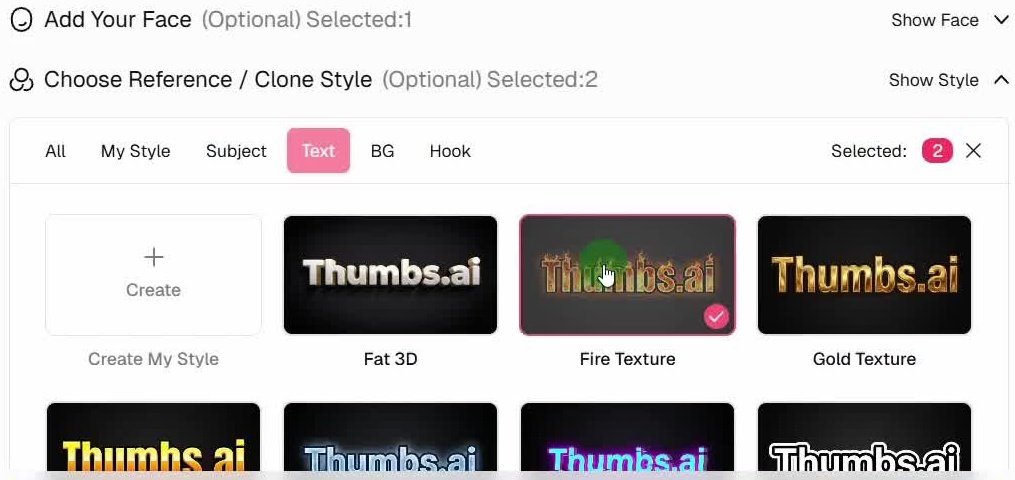
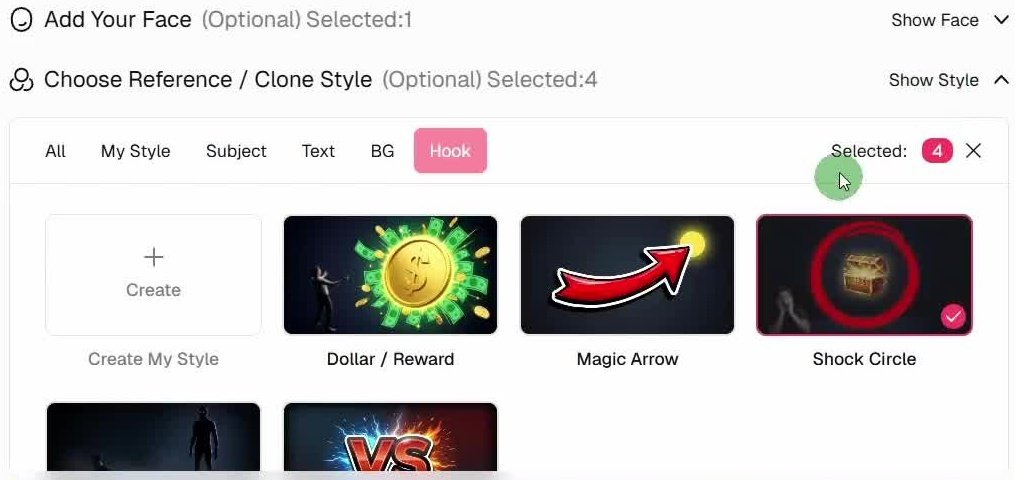
Open Choose Reference / Clone Style. The recorded interface separates options into Subject, Text, BG, and Hook tabs. These let you guide different parts of the composition instead of putting every design instruction into the prompt.
The recording browses Subject, Text, BG, and Hook effects, and the final setup contains four selections. Fire Texture, Contrast Dual, and Shock Circle are visibly selected. At 01:49, Shock Circle is checked and the total is four. The fourth selection is not clearly shown, so use these three confirmed effects as a starting point rather than assuming an exact four-preset recipe.
Start with a small number of choices that support the scene. If the result becomes crowded, simplify the prompt or remove a competing style before generating again.
Step 4 Set the format and check the generation cost
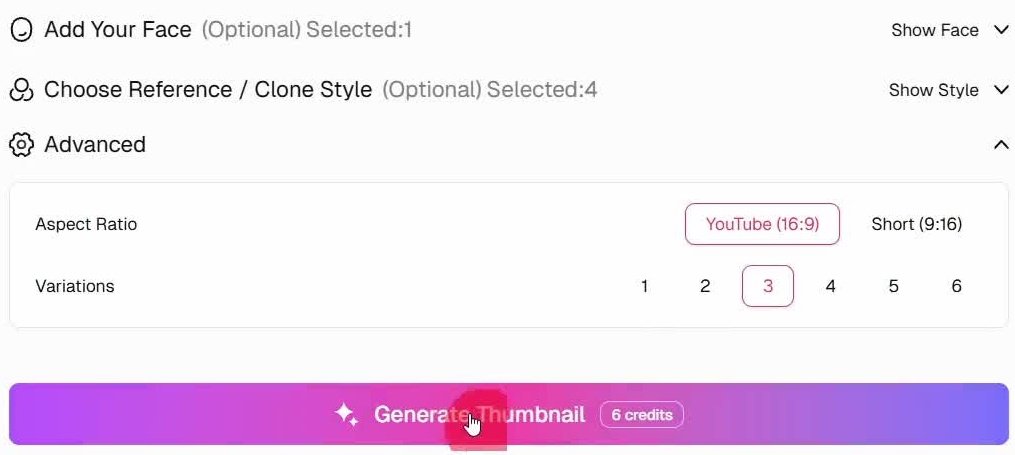
Expand Advanced and choose YouTube (16:9) for this landscape example. The recorded interface also offers Short (9:16). At 02:05, the setup shows one face, four styles, and three variations. The Generate Thumbnail button displays a cost of six credits.
Read the cost shown on your own screen before clicking. The six-credit figure describes this recorded batch, not a promise that every future setting or account will be priced the same. For an unfamiliar idea, consider generating a smaller batch first so you can adjust the direction before spending more credits.
Step 5 Compare the actual results
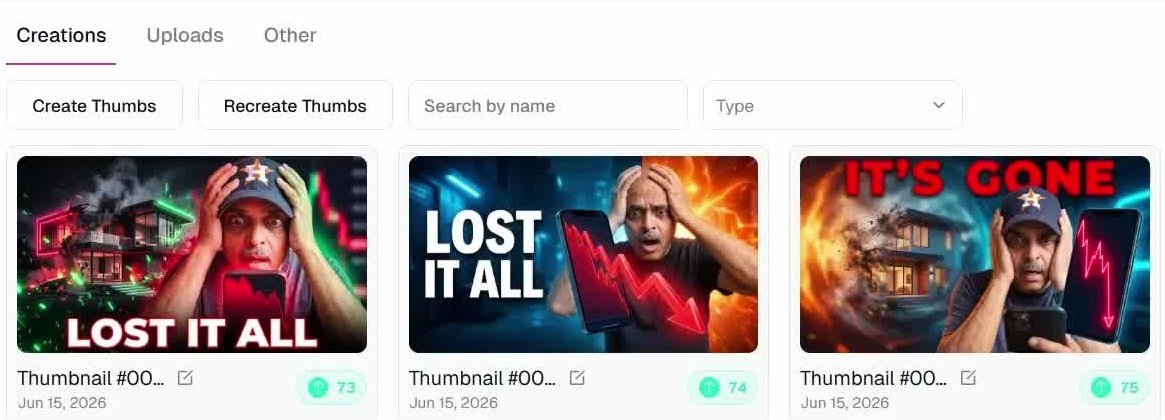
The first three new images appear in Asset & Creation at 02:15. Two use the headline LOST IT ALL and the third uses IT'S GONE. They interpret the same prompt differently, changing the placement of the person, phone, chart, background, and text.
Compare the images at a small viewing size as well as enlarged. Can you identify the subject immediately? Is the text readable? Does the image communicate the same promise as the video title? Inspect faces, hands, and objects for obvious mistakes before choosing a result.
The gallery also displays numeric badges. I do not treat those numbers as observed YouTube performance. This demonstration shows generated options; it does not establish that any option produced more clicks.
Step 6 Start from a reference thumbnail
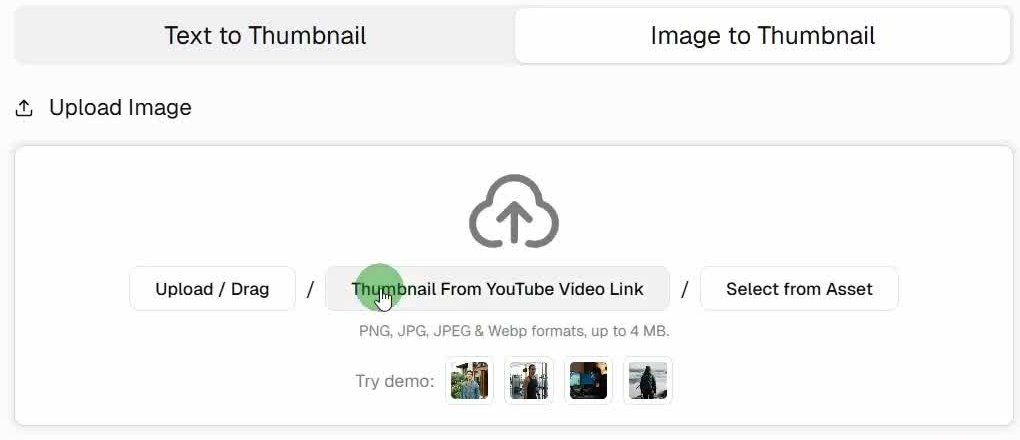
For the second route, open Recreate Thumbs and choose Image to Thumbnail. At 02:40, the import area offers Upload / Drag, Thumbnail From YouTube Video Link, and Select from Asset. Choose the route that matches your reference. With the YouTube-link option, follow the current prompt to supply the video URL and confirm that the intended thumbnail loads.
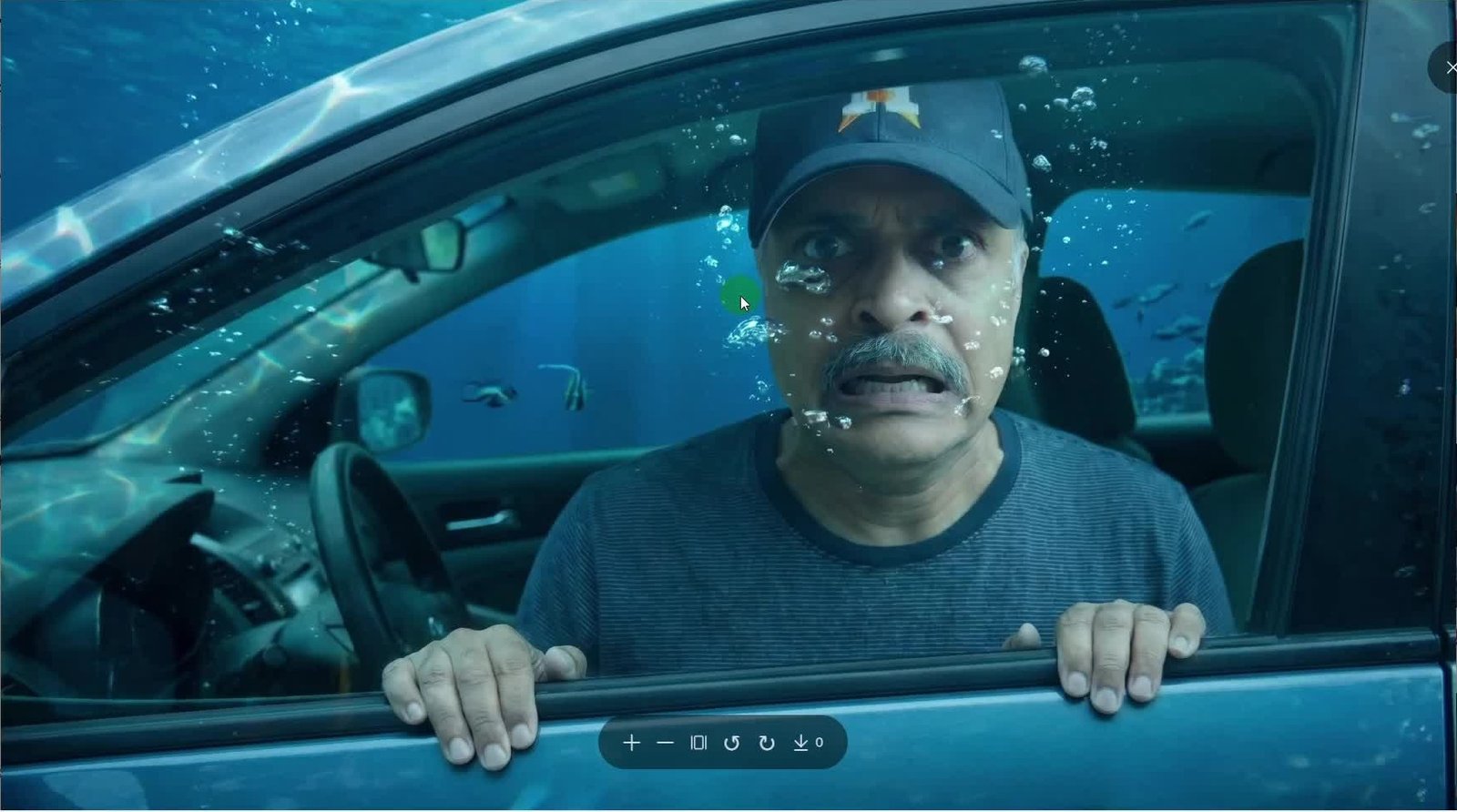
I use an underwater-car scene in the demonstration. The reference provides a visual starting point; the text prompt tells Thumbs.ai what scene I want to generate. Keep that distinction in mind when the result changes details rather than reproducing the source exactly.
Step 7 Pair the reference with your face and prompt
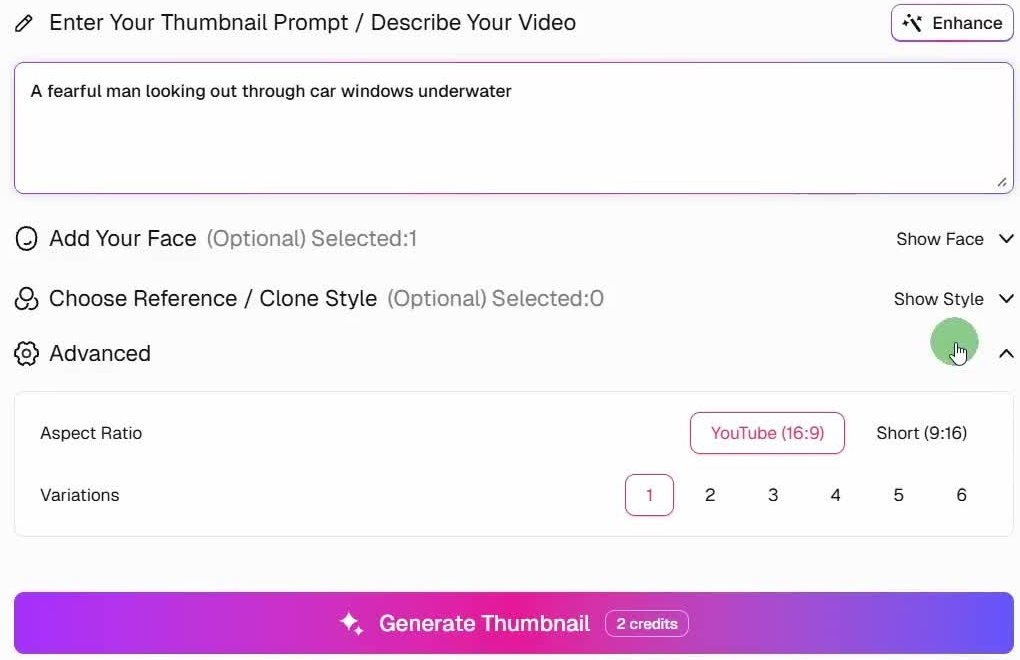
For the underwater example, I choose a Fearful face and enter this prompt:
A fearful man looking out through car windows underwater
At 02:51, the controls show one selected face, zero additional styles, YouTube (16:9), and one variation. This is a useful contrast with the first example: the reference image supplies much of the scene direction without four extra style choices.
At 03:10, the enlarged result shows my face in a blue submerged-car scene. Compare it with the reference and your intended story, not just with a vague idea of an attractive image. Check whether the expression, framing, and main action still make sense.
Step 8 Try a visual hook and compare variations
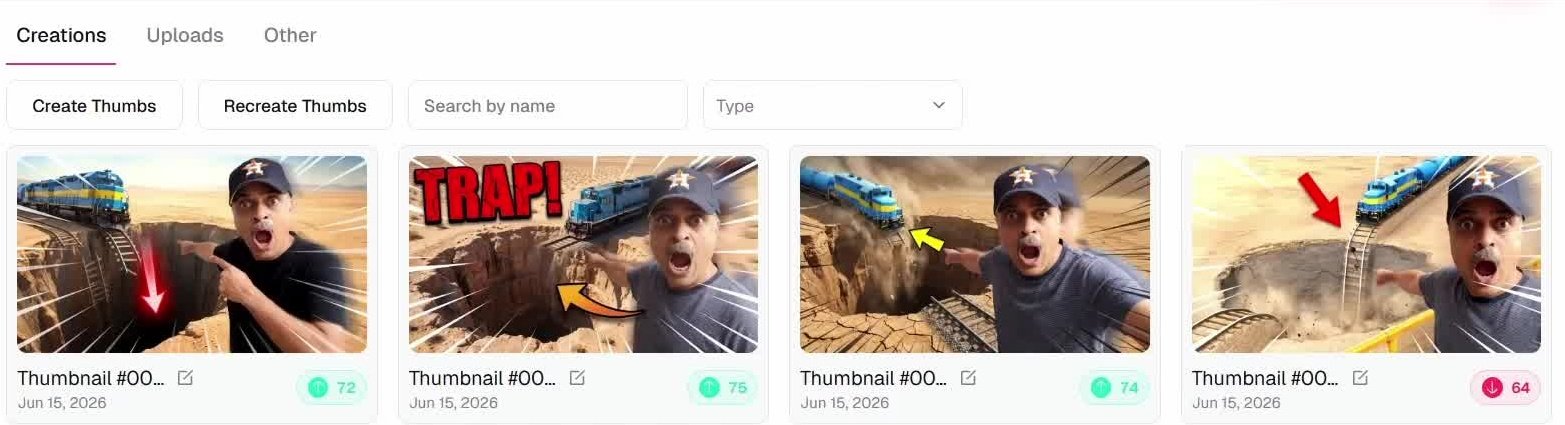
The next example uses a train near a large pit. At 03:20, the prompt is:
A shocked man pointing finger to a pit
I select Magic Arrow from the Hook options; it is visibly checked at 03:29. By 04:10, the gallery shows four train-and-pit variations, with different arrows, framing, and text treatments. This shows why it is worth comparing more than the first result when the composition is not settled.
An arrow should help the viewer find the important detail. If it points somewhere unhelpful, or competes with the face and text, choose another result or revise the setup. Do not add a visual hook simply because the preset is available.
Step 9 Adapt the workflow to a tutorial topic
The final example returns to Create Thumbs for a practical technology tutorial. At 04:15, I enter:
Build an AI customer support agent with n8n
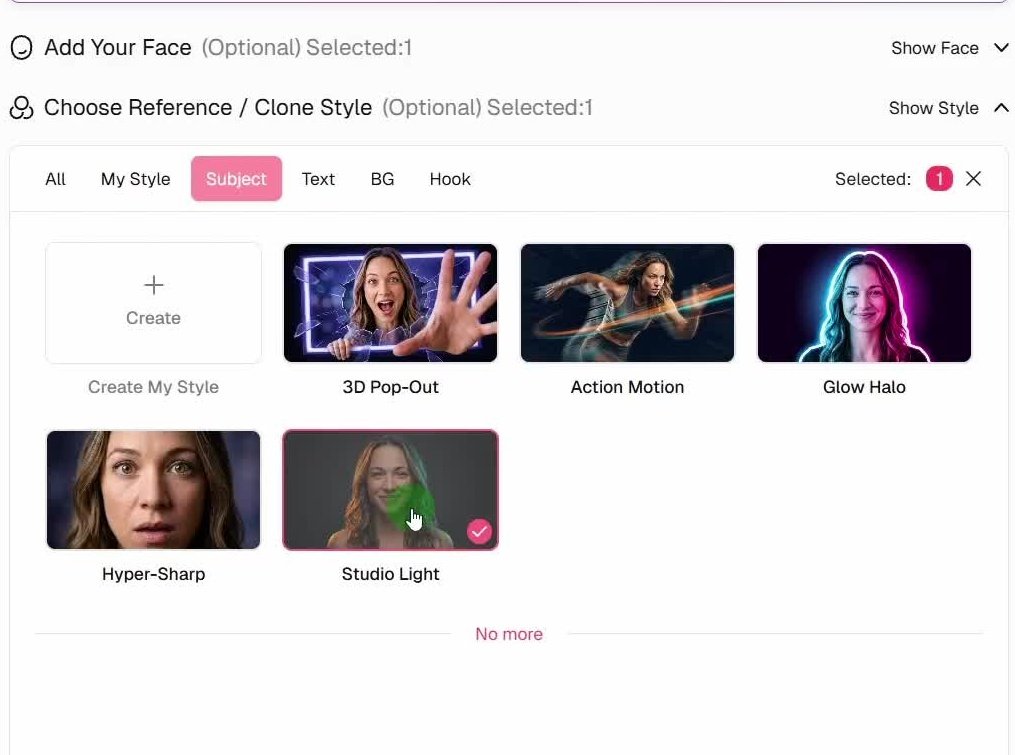
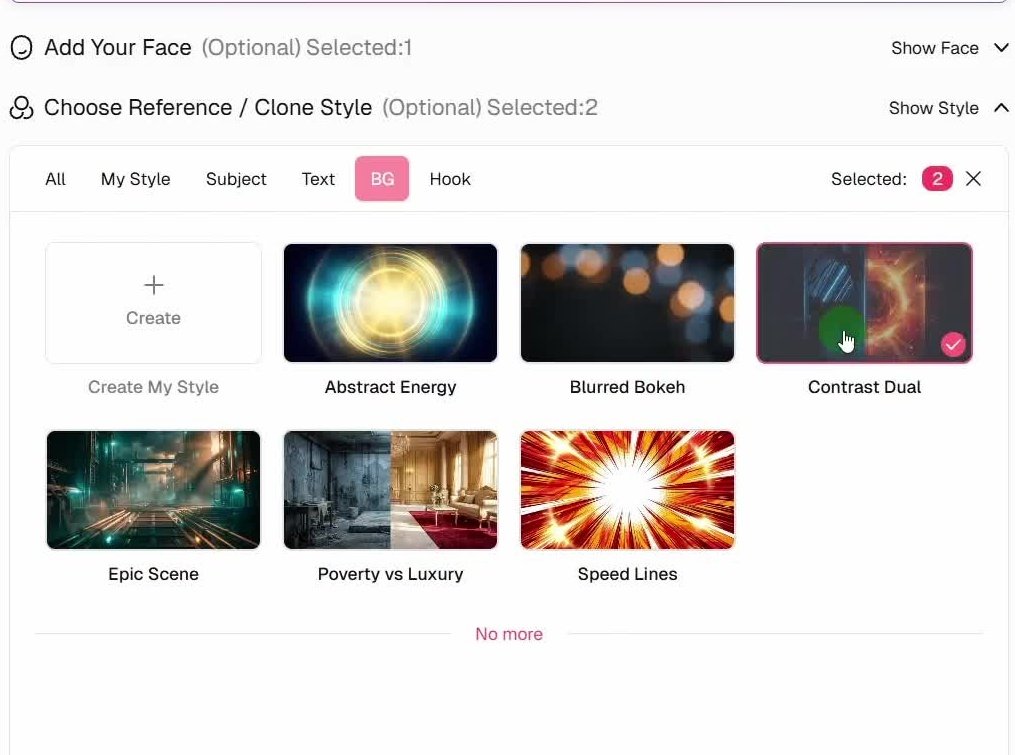
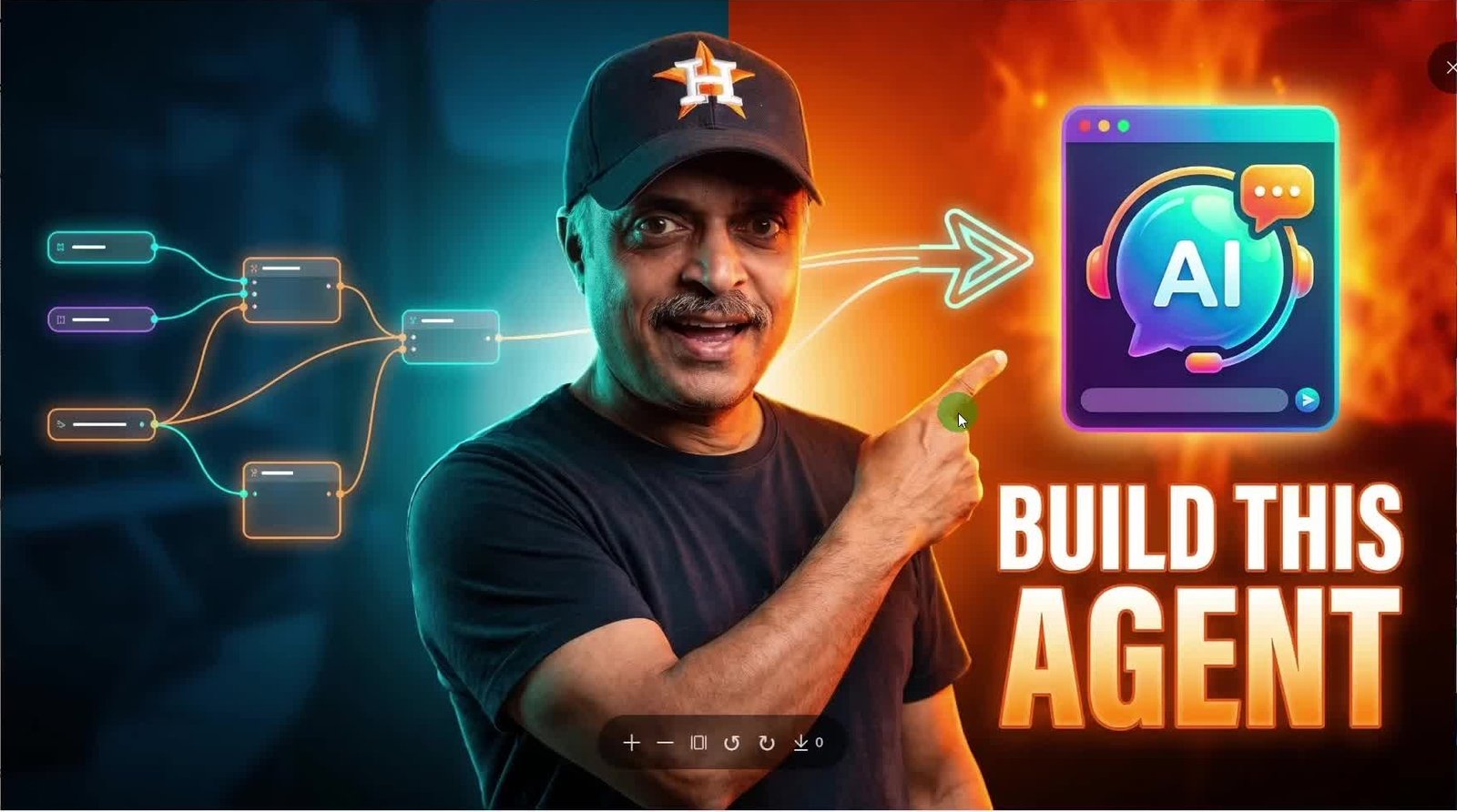
I select Studio Light under Subject and Contrast Dual under BG. At 04:21, Contrast Dual is checked and the style total is two. The generation button then shows 12 credits, followed by six generation slots. One result, opened at 04:33, combines my face, a workflow-like graphic, an AI support icon, and the headline BUILD THIS AGENT.
This example is closer to an educational thumbnail than the dramatic train and underwater scenes. The important check is whether the image communicates the tutorial's actual outcome. Inspect any AI-generated interface graphics or symbols; a plausible-looking diagram is not necessarily a correct representation of your software workflow.
Check the current trial and usage terms
As checked on October 29, 2026, the official pricing page lists 10 trial credits, described as approximately five thumbnail generations: five credits immediately and five more after the first generation. The free option includes a watermark. Check the live pricing page before signing up or budgeting a batch; older offers mentioned in videos may no longer apply.
For publishing or commercial work, review the current plan and terms. The terms discuss use of generated output and responsibility for third-party rights, while the pricing page specifically lists commercial-use rights on higher tiers. Do not assume every plan gives identical permissions. Use faces and reference images with permission and resolve any licensing uncertainty before publishing.
Choose a thumbnail you can stand behind
Before using a result, check the face, spelling, main object, and readability at a small size. Make sure any dramatic scene or headline accurately represents the video. Open the chosen image and use the available download control, then inspect the downloaded file before uploading it.
The repeatable workflow is straightforward: choose a clear scene, add a suitable face, select only the styles you need, confirm the format and credit cost, and review the outputs. Start with one video idea and a small batch. Revise the weakest part of the image rather than changing every setting at once.