A convincing product-video draft starts with a clear presenter, a recognizable product and one understandable action. Asking an AI tool to “make an ad” leaves too much undecided: who appears, what they do, what they say and which details must stay faithful to the product.
This UGCvideo.ai tutorial follows three useful paths: create a reusable character for a foundation ad, combine a presenter and gadget reference, and turn a short script into a talking video. The examples show how to prepare inputs and choose settings, but also why you should review the generated creative rather than assume it followed every instruction.
The tutorial interface separates character creation from the ad and other video workflows. Choosing the mode that matches your inputs is the first practical decision.
Watch the complete AI Stack tutorial
1 Build a reusable presenter for a product ad
Open UGC Character. The tutorial shows four routes: Start from an image, Describe your character, Build your character and Influencer Generator. Use the image route when you already have an authorized presenter reference; use a descriptive route when you are developing a fictional character. There is no need to try every route before making an ad.
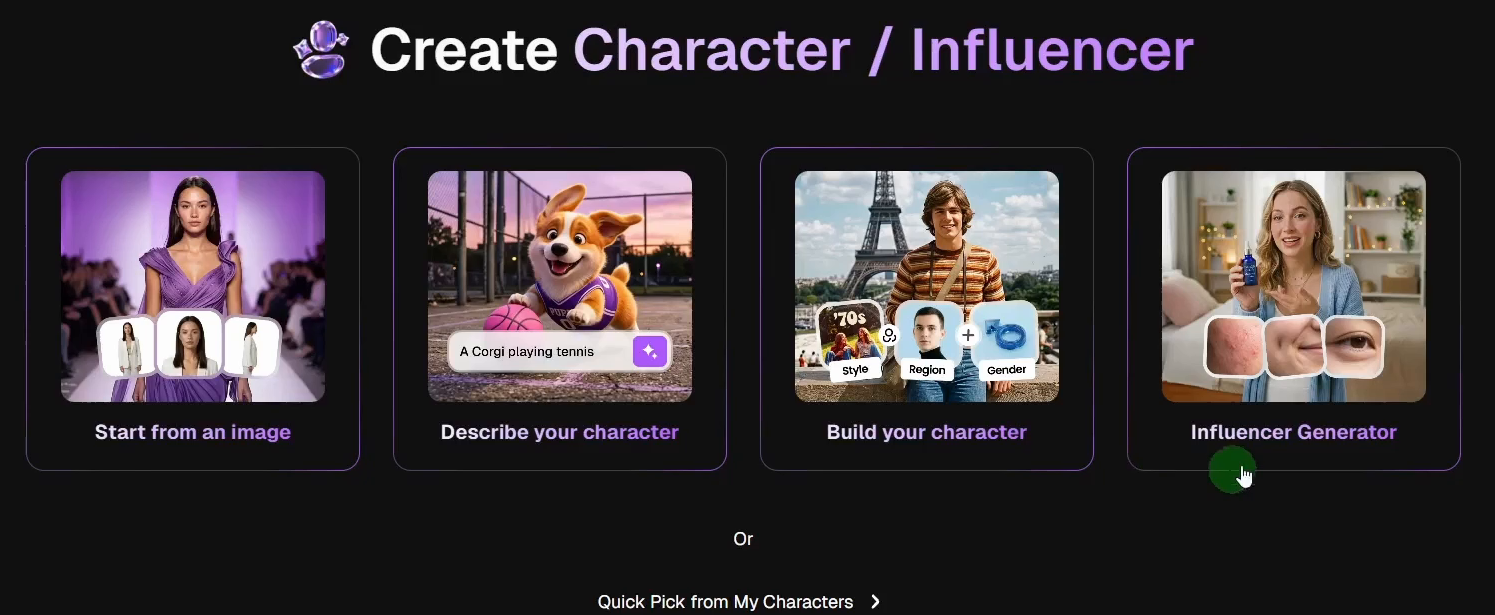
For the foundation example, the tutorial creates a lifestyle influencer and selects one of the generated variations as the reference. The brief describes a friendly presenter in a coffee shop with natural window light. Think about the setting as well as the face: the reference can influence the scene that appears later.
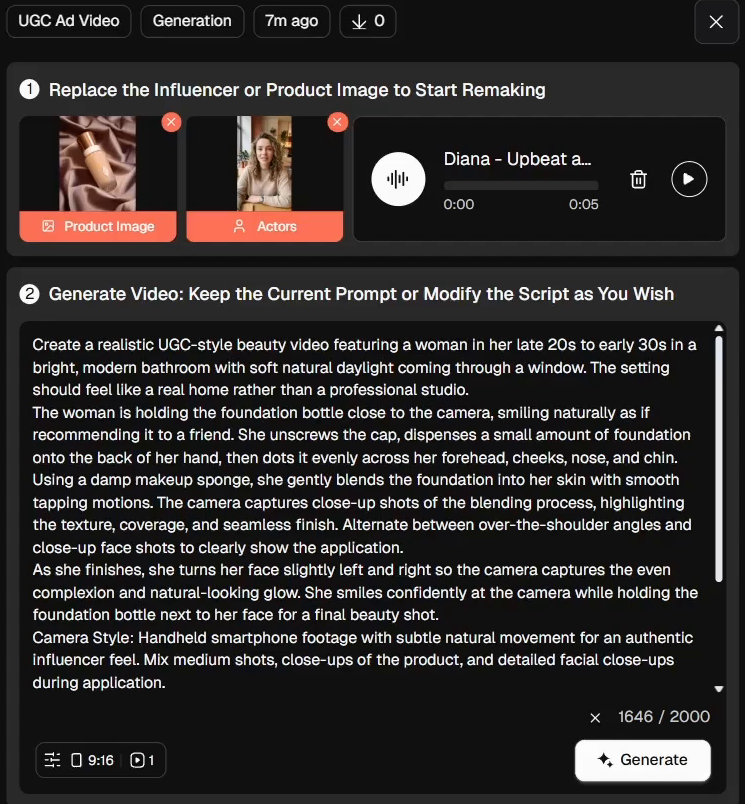
Next, open UGC Ad Video. Add the foundation bottle under Product / App Reference Image and the saved presenter under Influencer. Those are separate inputs: one establishes the product, the other establishes the person. The demonstration uploads the bottle image and uses Add my Influencer to choose the newly created character.
A detailed prompt then describes the scene, product handling and camera treatment. Here is a short excerpt visible in the result panel; it is not the full prompt.
Foundation prompt excerpt
Create a realistic UGC-style beauty video featuring a woman in her late 20s to early 30s in a bright, modern bathroom with soft natural daylight coming through a window. The setting should feel like a real home rather than a professional studio.
The woman is holding the foundation bottle close to the camera, smiling naturally as if recommending it to a friend.
The recorded setup uses the Diana voice, a vertical 9:16 format and one variation. The tutorial also opens the custom-voice recording/upload option, then explicitly chooses not to use it. Selecting a library voice is the demonstrated path; the video is not a test of a cloned voice.
Review the output against the brief. In the frame below, the presenter holds the bottle beside a window and table, although the prompt requested a bathroom. That visible difference is worth catching before refining the ad. A long prompt gives direction; it does not guarantee that every action, location or camera angle will appear.
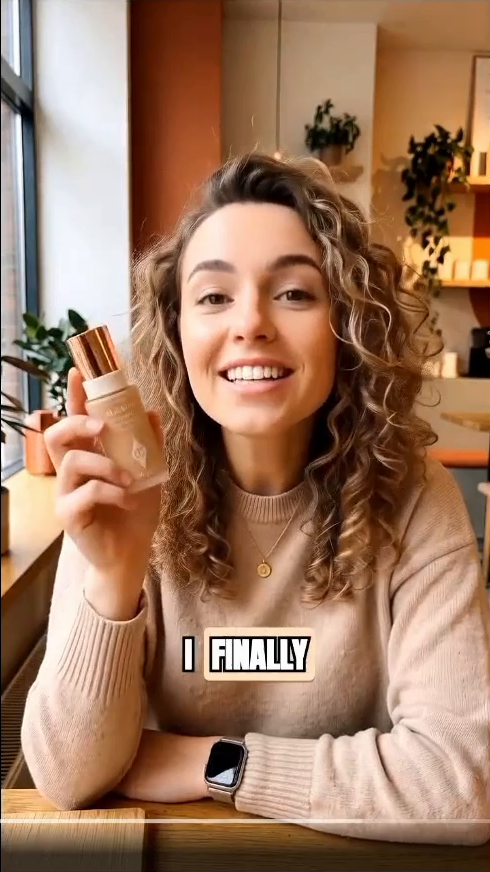
The demo’s generated voiceover also includes first-person product-use language. Treat it as fictional demonstration copy, not a real customer endorsement. Before using a creative, replace invented experience and unsupported product claims with statements you can substantiate.
2 Give a gadget video clear references and one action
For a presenter-led gadget demonstration, use UGC Video. The tutorial adds Shiva’s photo as the character and wireless earbuds as the product reference. At 11:30, the visible model is Kling-3.0 and the attached references are labeled @Shiva and @image1. Use the actual reference labels in your own workspace rather than copying unrelated names.
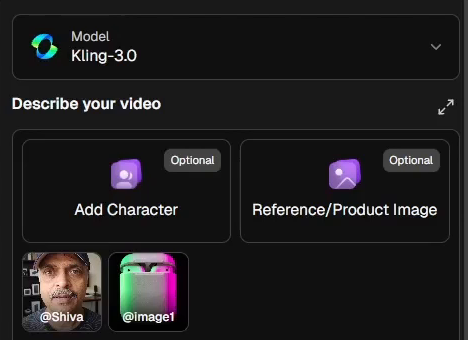
The source prompt asks the presenter to pick up the gadget, rotate it and demonstrate an interaction. The shorter version below is an adaptation for reuse, not a verbatim transcription of the video’s full prompt. Replace the tags with your own selected assets.
Adapted gadget prompt
Use @Shiva as the presenter and @image1 as the product reference. In a clean home office, have the presenter pick up the earbud case, show it clearly to the camera and demonstrate opening it. Keep the product shape and identifying details consistent with the reference. Use soft daylight and restrained hand movement. Do not add claims about the product or invent a personal review.
The recorded run turns Sound Effect on, selects 1080p, returns the duration to 8 seconds and requests two variations. The narrator changes duration while showing that the displayed credit estimate changes. Check the estimate for your own settings before generating; the numbers in an older recording are not a current price or allowance.
For a short clip, start with an action you can judge clearly. Compare the variants for product shape, hand contact and whether the requested interaction is understandable.
3 Use Talking Video when the words come first
Open All Tools and choose Talking Video when you already know what the presenter should say. Select a character, enter the script and choose a voice. In this example, Add speech emotion inserts confident and eager cues, and Sharon is the selected voice.
Paste the spoken words first, then use Add speech emotion for the delivery cues. The bracketed labels below identify those cues; they are not words for the presenter to say.
Script shown in the tutorial
[confident] Whether you're part of a small team or a large organization, this solution can help streamline your daily workflow. [eager] Let's see it in action.
The optional gesture field supplies separate direction for the presenter. The exact visible instruction is:
Use natural open-hand gestures while explaining key points. Occasionally raise one hand to emphasize important information and return to a relaxed posture.
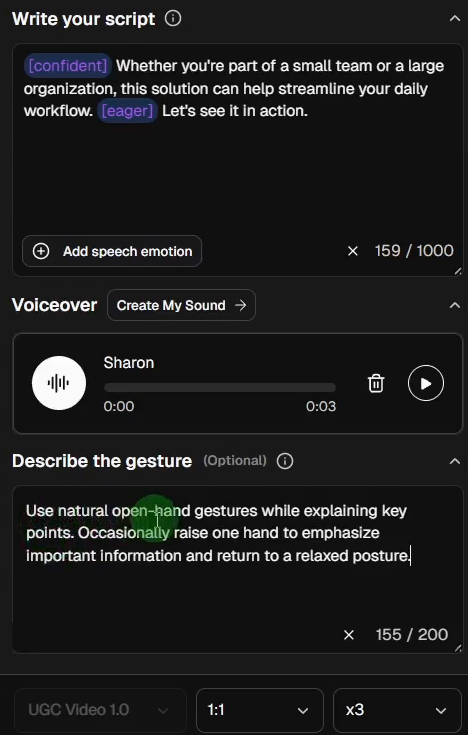
The demonstration requests three square variations. Use this kind of format for a short introduction or explanation, then listen to the whole result. Check pronunciation, whether the words match your intended meaning, and whether the gesture timing supports the message.
Review the creative before using it
Keep the presenter reference, product reference, visual instructions and spoken claims separate in your review. Check packaging and readable text, watch the complete motion, and listen for wording you did not approve. If something is wrong, revise the relevant input rather than adding unrelated instructions.
For your next iteration, changing one variable at a time makes the comparison easier: try a different opening line, product action or framing while keeping the rest stable. Treat each output as an AI-generated creative draft, not evidence that a real customer used or endorsed the product.
Affiliate disclosure: the following tool link is an affiliate link.