The music in a travel promotion should feel different from the soundtrack behind a workout video or a quiet product walkthrough. Yet searching a music library can take longer than assembling the video itself. OpenMusic AI offers another starting point: describe the sound you need, generate a few options, and choose a section that fits your footage.
This guide adapts the AI Stack OpenMusic tutorial, using a tropical travel song as the main example. You will also see how to supply custom lyrics, make a high-energy fitness track, and create an instrumental lo-fi background. The final step is bringing the selected audio into your video editor. You do not need to play an instrument, but you do need a clear brief and time to listen critically.
Watch the complete OpenMusic AI walkthrough
Disclosure: The following OpenMusic link is an affiliate link. If you purchase through it, I may earn a commission.
What OpenMusic AI does
OpenMusic AI generates music from a description or supplied lyrics. Its current song-generation documentation describes two routes: Prompt, where you explain the music you want, and Own Lyrics, where you provide words or use AI to help write them. Generated tracks can then be played, reviewed and downloaded from the workspace.
For a small business, the useful question is not simply whether AI can make a song. It is whether the track supports a particular piece of content. A vocal hook may suit a travel montage; an instrumental is usually a better starting point when a presenter needs to be heard.
OpenMusic song generation documentation
Before you begin
Have an OpenMusic account, a short description of your video, and footage you have permission to use. Have your preferred video editor ready for the final assembly. Decide whether the music should contain vocals or sit underneath spoken narration.
Check the current allowance, number of outputs and credit cost shown in your account before generating. Plan limits and interfaces can change, so do not assume that a free allowance or price mentioned in an older video still applies. Keep your first test focused instead of generating every example at once.
Step 1 Write a brief for the video rather than a vague song request
Start with the job the music must do. For the travel example, the footage contains beaches and vacation scenery, so an upbeat tropical pop direction makes sense. The brief should communicate the subject, energy, instrumentation and whether you want vocals.
Use this prompt:
Create an upbeat tropical pop song about exploring beautiful beaches, sunshine, ocean waves, unforgettable vacations, and making lifelong memories. The music should have catchy vocals, positive energy, modern pop instrumentation, and be suitable for YouTube Shorts, Instagram Reels, and TikTok videos.
Notice how much more direction this gives than “make a travel song.” It defines both a musical style and a visual use. For your own project, replace the scenery and purpose with the actual subject of the video. Avoid adding several conflicting genres or moods just to make the prompt longer.
Step 2 Generate the first travel song
Open the song generator and use the Prompt route. Paste the travel brief. For this example, use a Pop genre and Joyous mood, leaving other optional settings unchanged and using automatically generated lyrics. If your current layout differs, preserve that musical intention in the prompt rather than search for a control that is no longer shown.
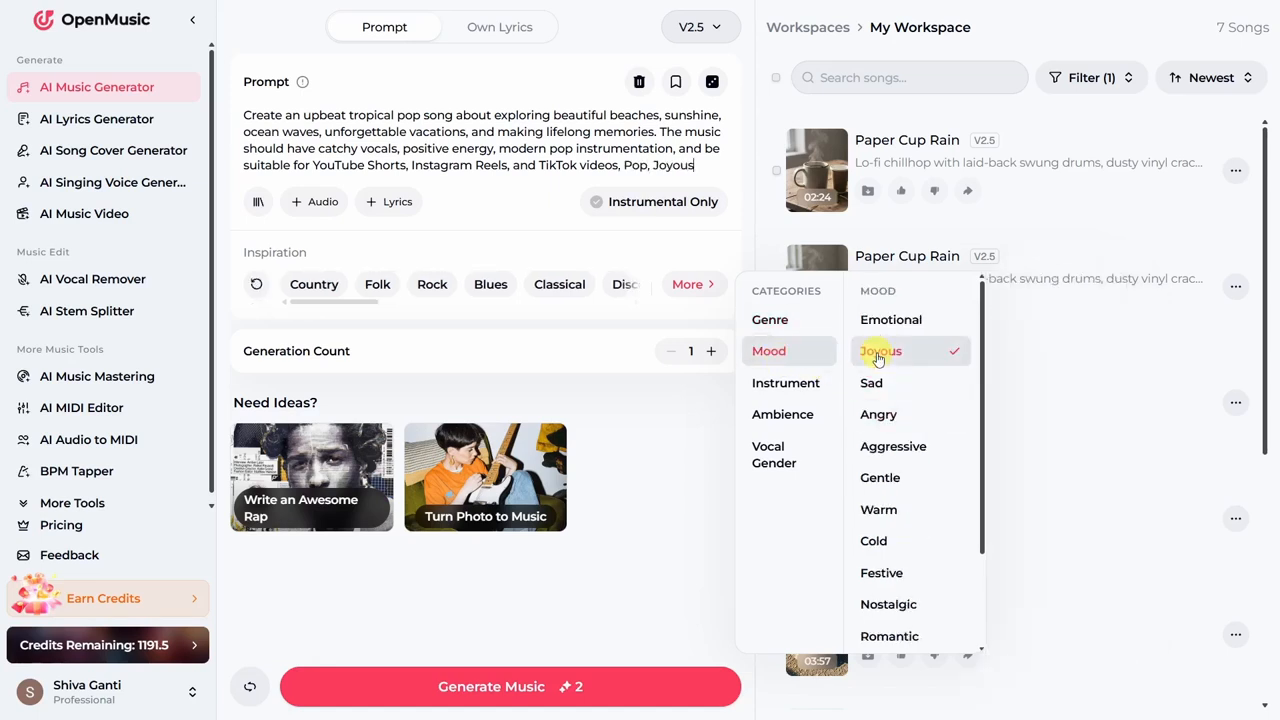
Check how many songs will be generated and the displayed cost, then choose Generate. When the result appears, listen before making another version. Review any generated lyrics as well as the sound: an attractive chorus is not useful if its meaning conflicts with the video.
Step 3 Listen for the section you can actually use
Play a short section first, then listen to the whole candidate you intend to keep. Ask whether the opening has enough energy, the vocal is understandable and the instrumental arrangement suits the footage. A song can sound pleasant on its own but become distracting once a presenter or voiceover is added.
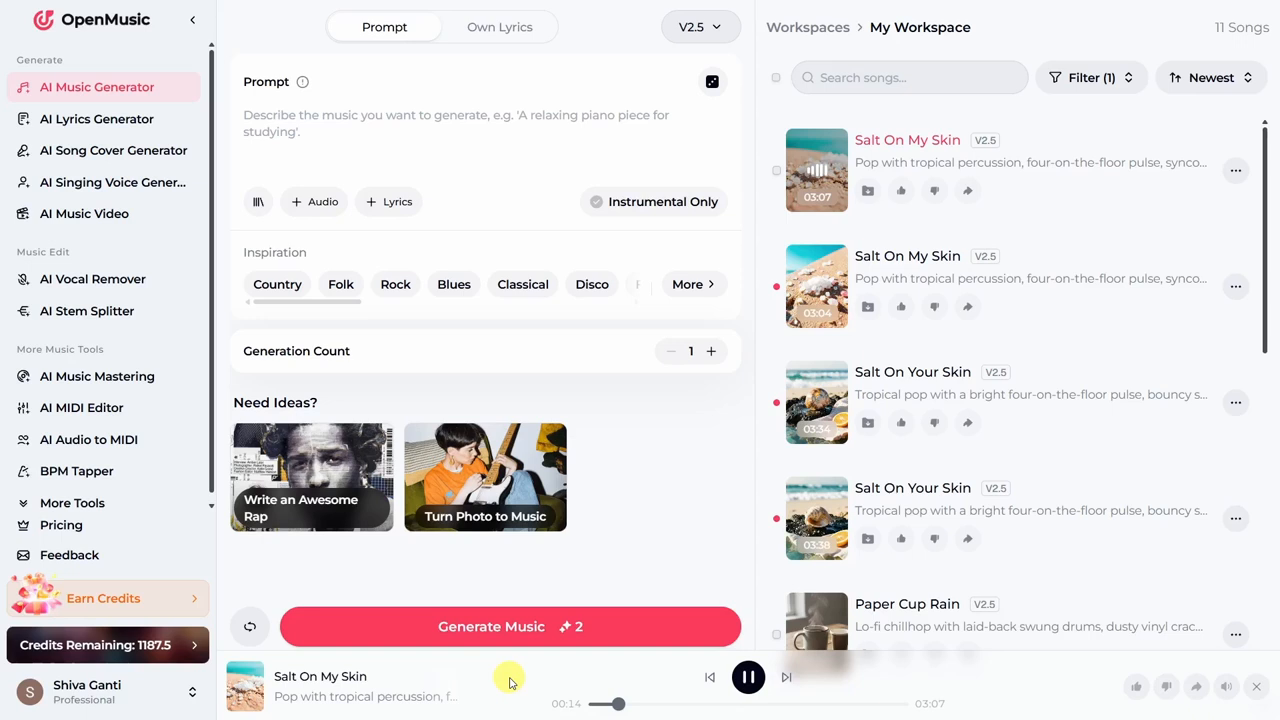
Identify a usable passage instead of assuming the complete generated track will fit the video. Check for awkward pronunciation, sudden changes, distorted sounds and an ending that would be difficult to cut. These are listening checks, not promises that every generated track will have those problems.
If the result is close, change one or two aspects of the brief, such as reducing vocal intensity or asking for a gentler arrangement. Keeping the other instructions stable makes the comparison more useful. OpenMusic’s own prompting guide recommends describing style, instruments, vocals, tempo, mood and mix, then refining the direction after listening.
OpenMusic guide to effective music prompts
Step 4 Use custom lyrics when the message matters
Automatically generated lyrics are convenient for a first idea. Custom lyrics are more useful when the song needs to follow a particular story. Use OpenMusic’s lyrics-generation option to develop a more deliberate travel theme with this prompt:
Write original lyrics for an upbeat travel song. The lyrics should capture the excitement of discovering new places, experiencing local culture, and creating unforgettable memories. Include a catchy chorus that is easy to remember and suitable for YouTube Shorts, TikTok, and Instagram Reels. Keep the tone uplifting, adventurous, and inspiring.
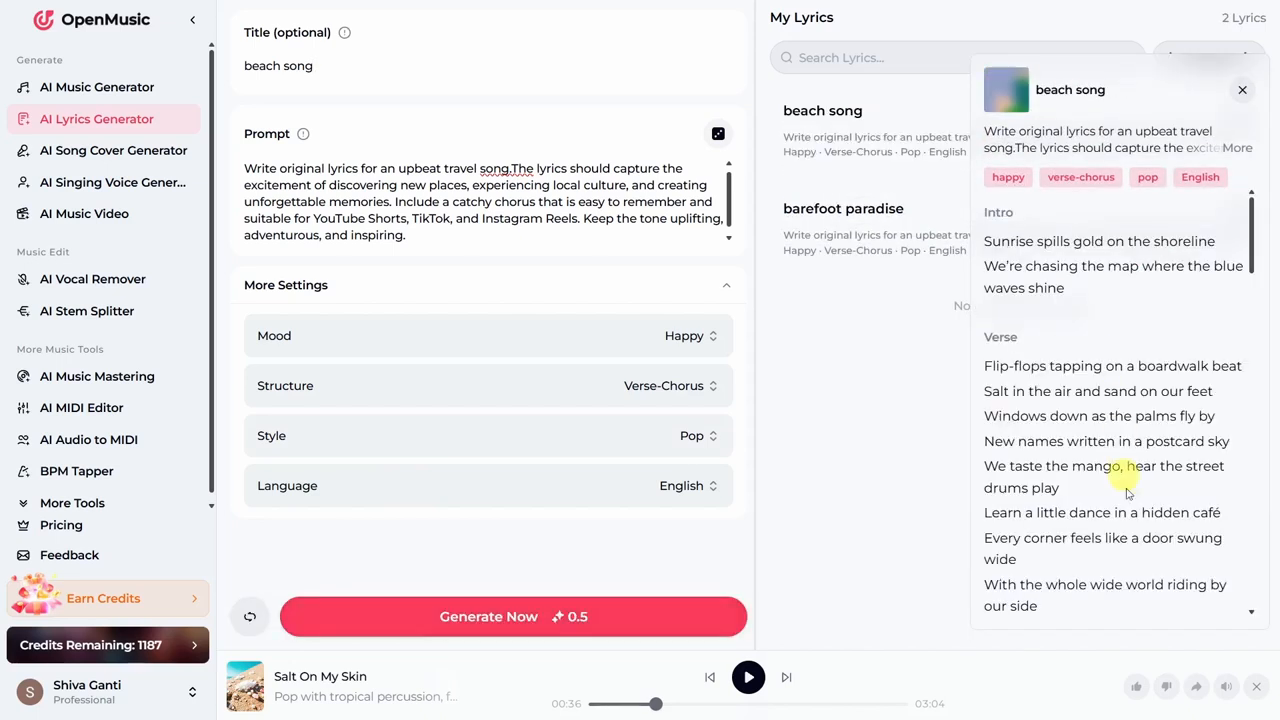
Read the generated lyrics and edit them before using them. Remove lines you would not want associated with your business, overly long phrases and claims the video cannot support. You can also write your own words; only use lyrics you have the right to supply.
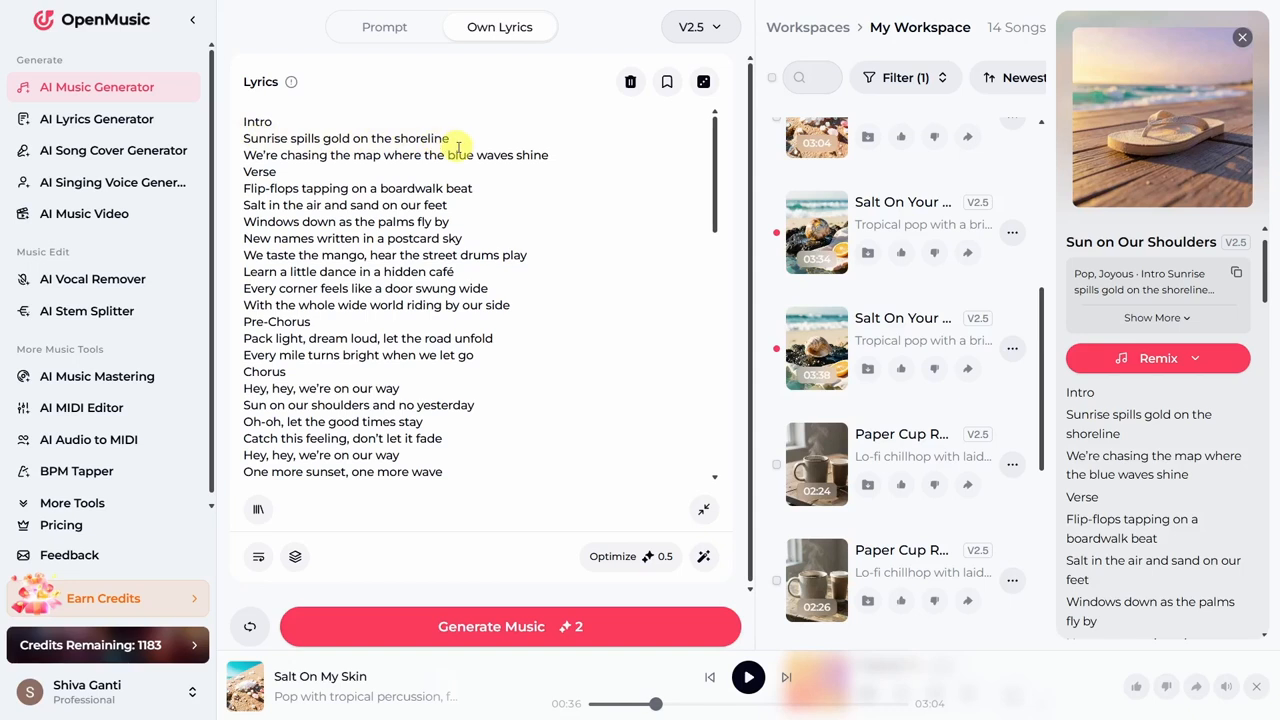
Return to song generation, choose Own Lyrics or the corresponding lyrics input in your interface, and paste the version you want to use. Keep the same pop and joyous direction for a meaningful comparison. Generate the new version after checking the cost, then listen to whether the phrasing works when sung. Better-looking text does not automatically make a better song.
Step 5 Try a different brief for a fitness promotion
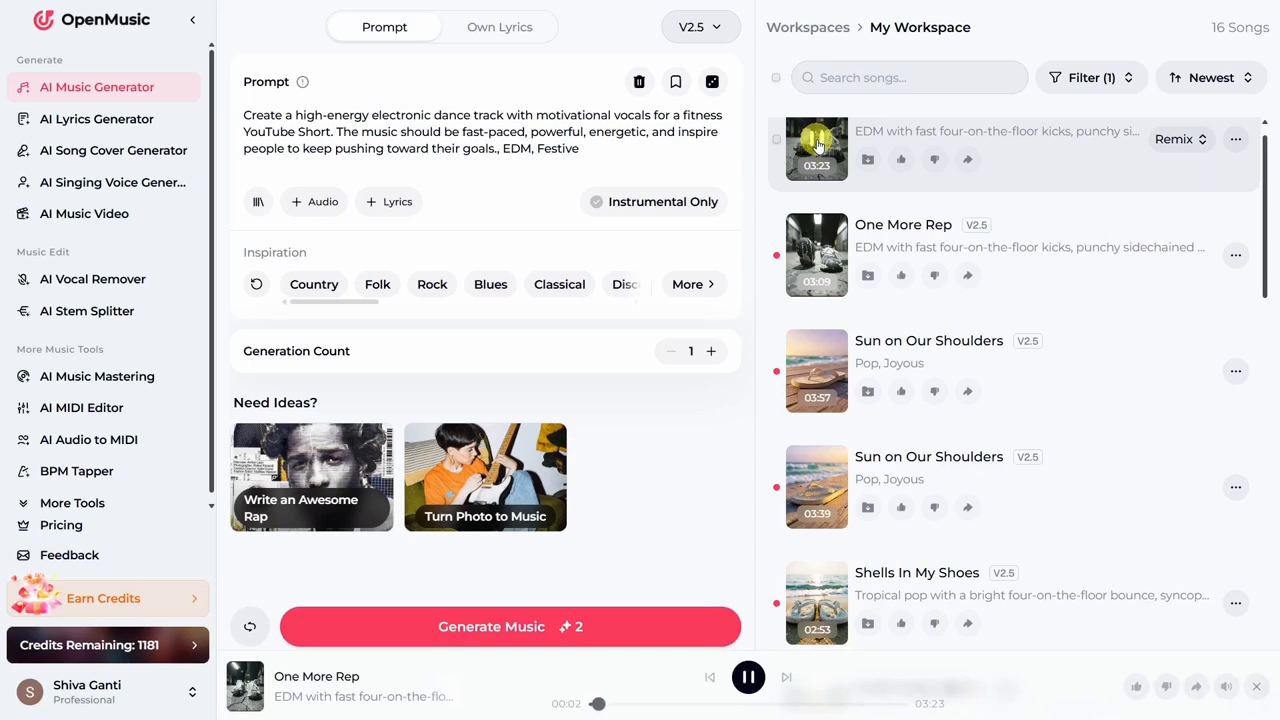
The fitness example changes the creative direction rather than lightly rewording the travel prompt. A gym promotion or workout montage needs a stronger pulse and more forceful energy. Try this prompt:
Create a high-energy electronic dance track with motivational vocals for a fitness YouTube Short. The music should be fast-paced, powerful, energetic, and inspire people to keep pushing toward their goals.
Use an Electronic Dance Music or EDM direction; the tutorial selects Festive for the mood to support the high-energy brief. Listen for whether the beat supports the pace of the visual cuts. If the video contains coaching instructions, check that the motivational vocal does not compete with those instructions; an instrumental variation may be more practical.
Step 6 Make an instrumental lo-fi background
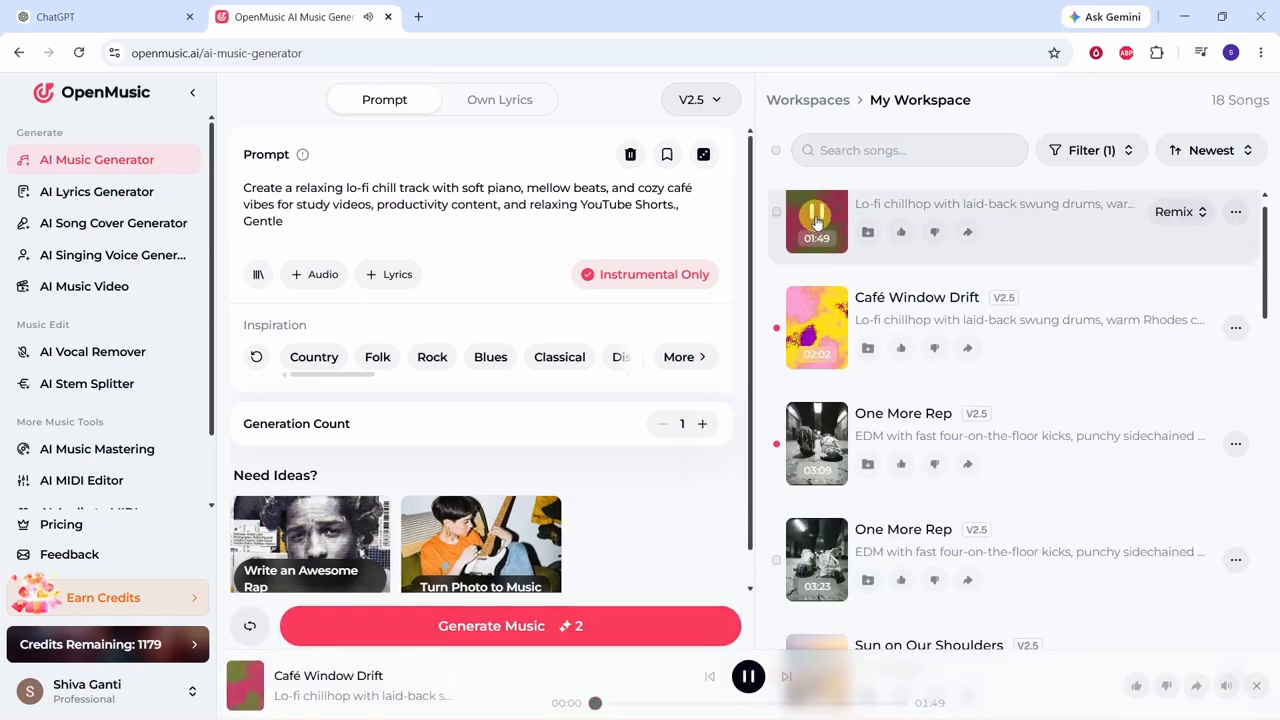
For a quiet walkthrough, study video or relaxed lifestyle piece, the music should leave room for the main content. The third example deliberately moves away from strong vocals and uses this prompt:
Create a relaxing lo-fi chill track with soft piano, mellow beats, and cozy café vibes for study videos, productivity content, and relaxing YouTube Shorts.
Keep the lo-fi direction in the prompt and select Gentle for the mood, as shown in the tutorial. Enable Instrumental Only, or the equivalent instruments-only option in your layout, before generating. That instruction matters because a relaxing prompt by itself does not necessarily mean you want a track without vocals.
Review it underneath a sample of your narration. Listen for sudden accents or busy passages that pull attention away from the explanation. The goal is a useful background, not the most elaborate composition.
Step 7 Download the chosen track and keep its details
Once you have selected a track, use the download option available for that result. Choose an audio format your account offers and your editor supports. If your result offers cover artwork, you can download that too. Artwork is optional for a video that already has its own visuals.
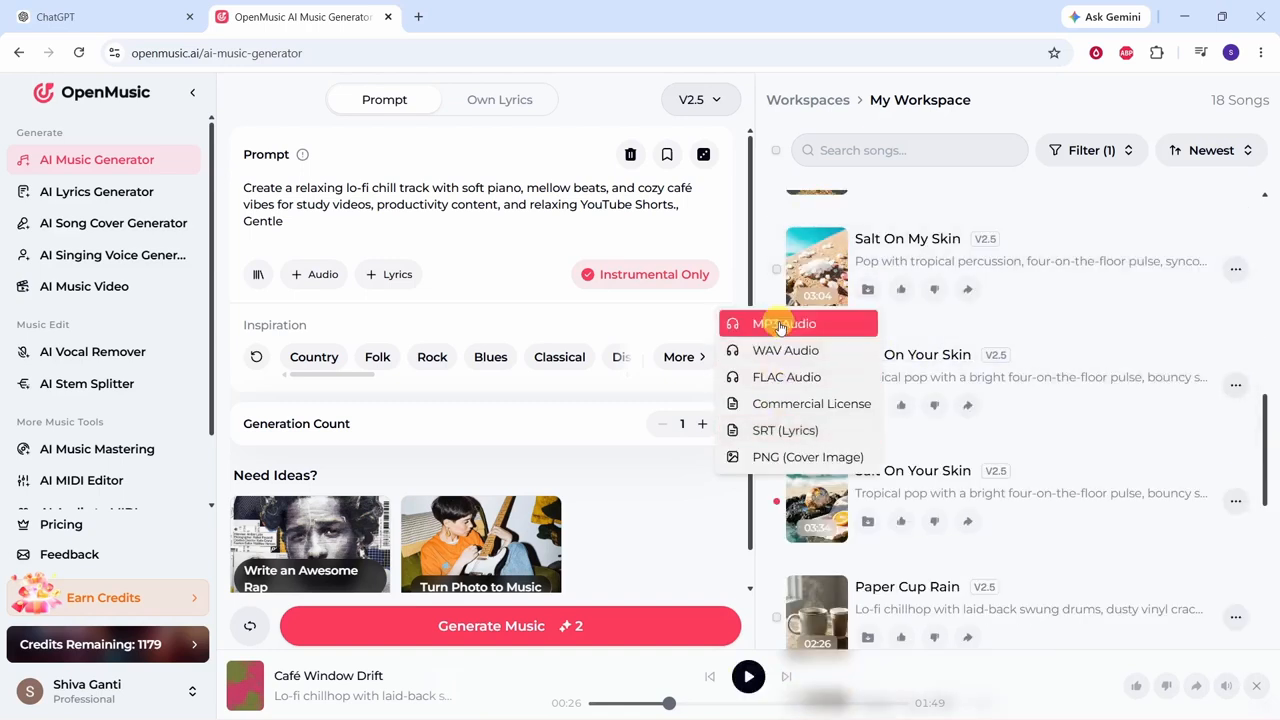
Give the file a descriptive name such as travel_pop_selected and keep a note of the prompt, generation date and track identifier. Save the applicable license information with the audio rather than trying to find it after a client asks about usage rights.
Step 8 Add the music to your video
Import your footage and selected OpenMusic audio into your video editor. Add the video to the timeline and place the music beneath it. Trim to the passage that fits the sequence, rather than stretching the video simply to accommodate the whole song.
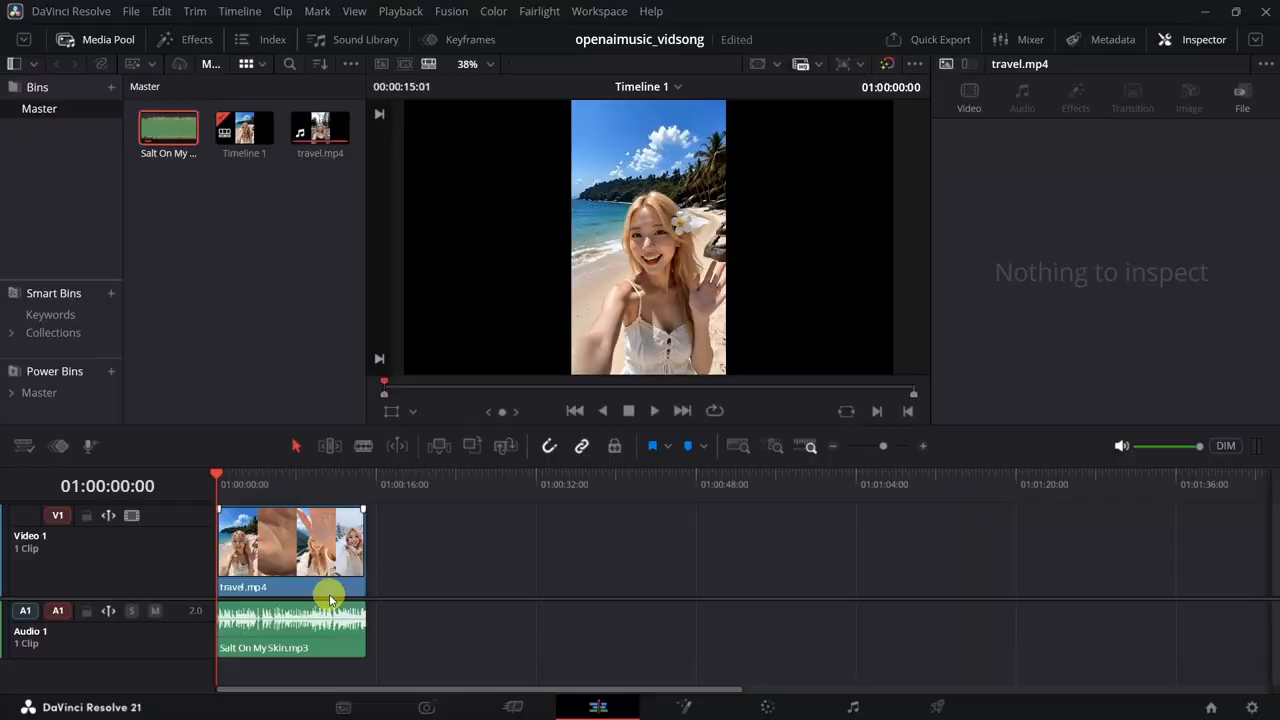
Balance the music against any speech, and avoid an abrupt cut at the beginning or end. Play the complete edit with sound, then export using the settings appropriate for your intended platform. Finally, reopen the exported file and check that the audio is present and the ending sounds deliberate.
The video demonstration uses a travel Short, but the same selection process applies to longer tutorials, presentations and business promotions. The important decision is whether the soundtrack supports that particular video.
Check usage rights before publishing or client delivery
AI-generated does not automatically mean unrestricted or copyright-free. Before monetized or client use, check the license attached to the specific track and your current account terms, and retain any applicable certificate. OpenMusic’s license agreement does not guarantee exclusive output, copyright protection or freedom from Content ID claims. Use only lyrics, audio and other inputs you have permission to provide.
The provider’s current pages do not describe every plan and certificate option consistently, so confirm the entitlement shown for your track rather than rely on an old price or a blanket commercial-use claim. This article does not promise that uploading a generated track will avoid every platform claim.
Read OpenMusic’s current license agreement
Start with one useful track
OpenMusic is most useful when you bring a clear content brief and make deliberate choices after listening. Start with one video, choose whether it needs a vocal song or an instrumental background, and test a small number of variations. Keep the version that serves the edit, then check its usage rights before publishing.
For more practical AI workflows, prompts and free resources, join the AI Stack community on Skool. You can also watch the complete tutorial above to follow the travel, fitness and lo-fi examples on screen.