A weekend offer can be simple to write and surprisingly time-consuming to animate. You need a clear price, a visual that fits your business, and enough time for customers to read the message. In this tutorial, we turn that brief into a short promotion for a fictional café called Morning Ritual, using GPT-6 Astra, Codex, and HyperFrames.
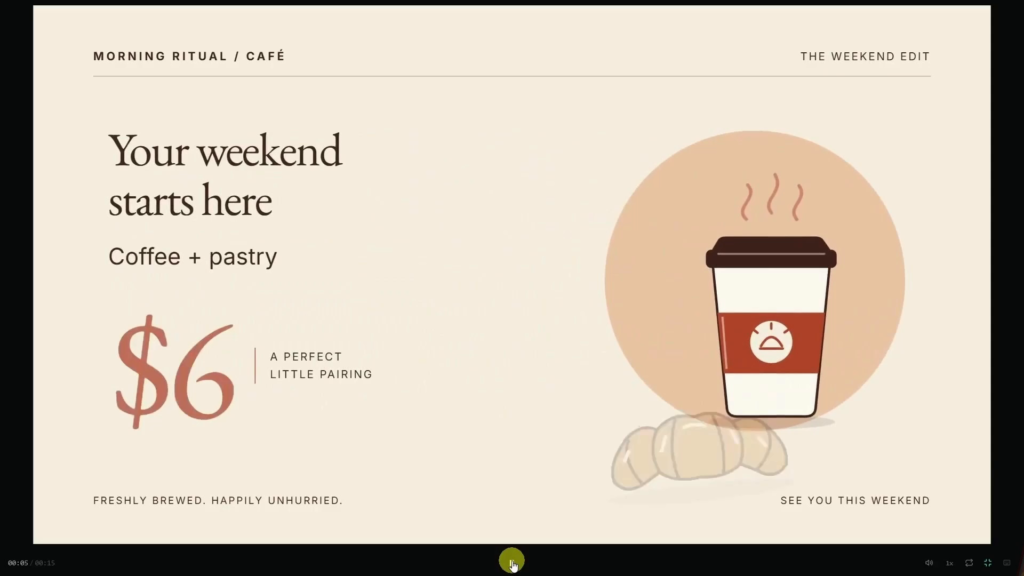
The example centres on a coffee-and-pastry offer for $6. It gives us a practical project to work through: set up the tools, build an editable animation, review the pacing, and export a video file. You can follow the same process without writing the animation code yourself, but you will still make the important creative decisions and check the result.
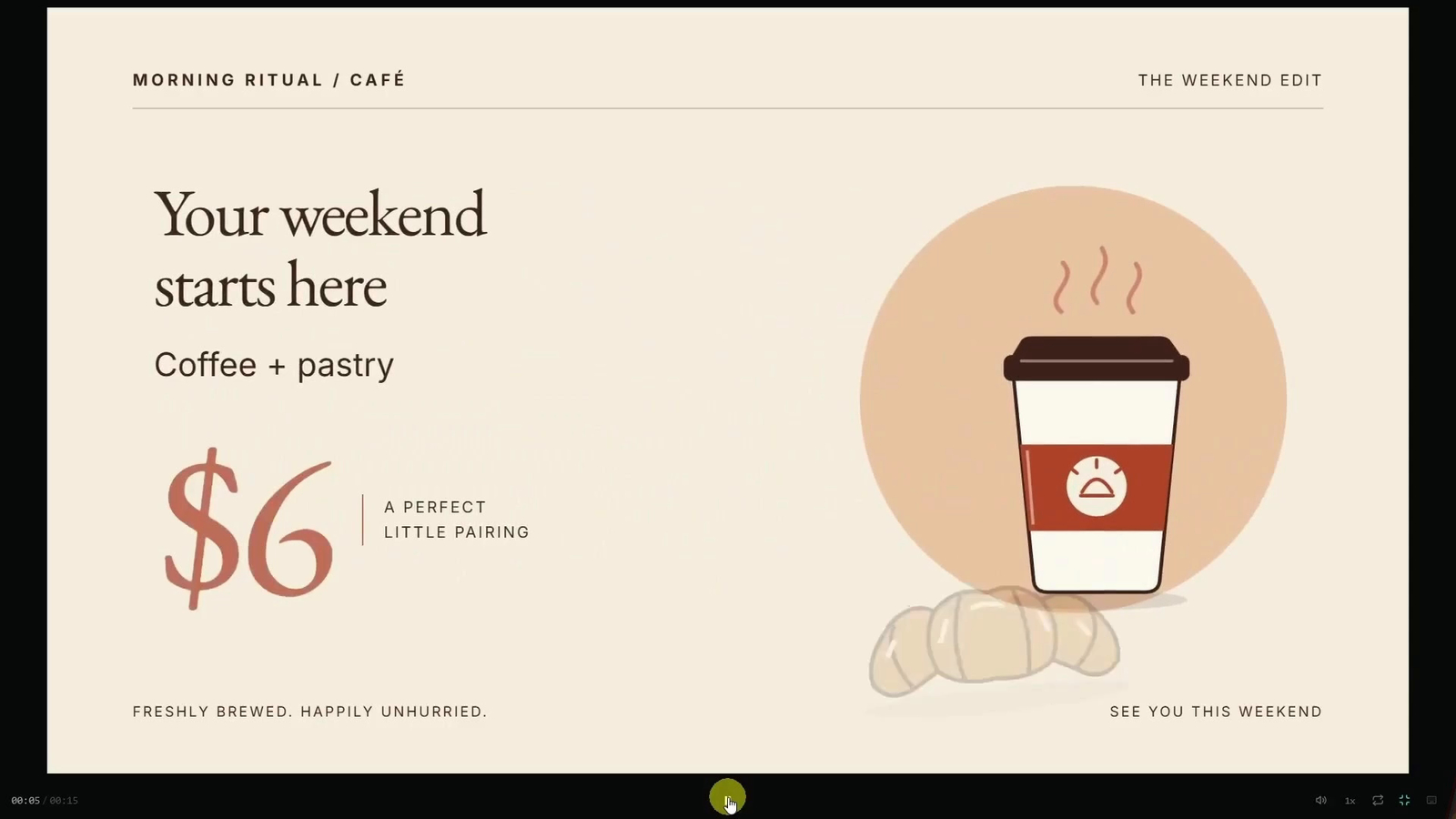
Watch the complete AI Stack video alongside the guide, and copy the prompts into your own project as you reach each stage.
How the three tools work together
Astra is the model used for the design and coding decisions in this walkthrough. Codex works with the local project files and runs the tools. HyperFrames provides the animation preview and rendering workflow. The underlying composition is built with web technologies rather than assembled from stock video clips; HyperFrames renders its frames in a browser and uses FFmpeg to encode the video. See the official HyperFrames project for the framework and its local requirements.
That arrangement is useful when the promotion needs precise wording, a consistent colour palette, or another version next week. Keep the editable project as well as the exported MP4, so a new price or call to action can become a revision rather than a completely new brief.
1 Prepare a local workspace on Windows
Install the official ChatGPT desktop app for Windows, sign in, and open a local Codex task in a dedicated project folder. The video creates a local folder and names the Codex project Cafe Motion Demo. A separate folder keeps the animation files, test render, and final output together.
Select GPT-6 Astra if it is available in your account. Astra is a model selection, not another application to install. The tutorial uses Light for setup and Medium for the creative work. Treat those as the demonstrated choices, not a promise that every interface will look identical: OpenAI’s model guidance notes that available controls vary by plan, client, workspace settings, and rollout.
The recording uses Full access, which gives Codex broader access than the project folder. You do not need to adopt that as a default: OpenAI recommends starting with Ask for approval in its permissions guidance. Keep the normal workspace protections in place and approve specific actions when needed. If an installation or browser launch is blocked, ask what failed and what access that individual step needs rather than changing permissions as a blanket fix.
2 Install only the tools that are missing
The local workflow needs a few supporting tools. Node.js and npm run HyperFrames; its skills tell Codex how to work with the framework; the rendering browser draws the frames; and FFmpeg produces the MP4. FFprobe checks the finished file. Git helps retrieve the skills. HyperFrames currently lists Node.js 22 or newer and FFmpeg for its CLI, with browser and environment checks available through its CLI documentation.
Start by asking Codex to inspect the computer. The demonstration begins with tools already installed, so an existing working installation should be kept, not replaced just to imitate a setup sequence. On a new computer, this stage may require installer interaction or a restart.
Installation prompt
Set up this Windows computer and the current project folder for creating and exporting local motion graphics with HyperFrames.

First inspect what is installed. Keep compatible working installations and install only missing or incompatible requirements.

Check and set up Node.js LTS version 22 or newer with npm/npx, Git, FFmpeg and FFprobe, a stable HyperFrames CLI version pinned in this project, the official HyperFrames core skills available to Codex, and the browser required for local rendering.

Use the official documentation: https://hyperframes.heygen.com/quickstart

On Windows, prefer npm.cmd and npx.cmd. Use the documented HyperFrames skills installation process and browser setup command. Use trusted official installers or Windows package manager packages for missing system tools.

Run the setup yourself rather than just giving instructions. Explain any installer, permission prompt, or restart that requires my interaction. If permissions block a step, explain the specific block and the access needed; do not change permission settings yourself.

Do not reinstall working tools or add optional paid services, voice tools, Docker, or unrelated dependencies. Do not create the demo video yet.

Finish with a summary of what was already installed, what you installed, and whether I need to restart the app before verification.
Read the setup summary before continuing. It should distinguish tools that were already present from anything newly installed, and make clear whether the app needs to restart to discover a tool or skill. The linked HyperFrames documentation may show newer setup routes; this article follows the local Codex workflow demonstrated in the video. If the installed skill does not appear, start a new Codex session; the official Codex setup guide specifically calls for a fresh session after installation.
3 Test the complete rendering path
An installation summary is not enough to establish that the project can export a video. A command can be installed yet unavailable to the current session, or the rendering browser can fail to launch. The verification prompt asks for real checks and a separate two-second test animation before the main creative work begins.
Verification prompt
Verify that this computer and project are ready for HyperFrames motion graphics. Run real checks; do not infer success from the installation summary.

Check each of these:

1. Node.js is version 22 or newer.

2. npm and npx run.

3. Git runs.

4. FFmpeg and FFprobe run.

5. The project’s HyperFrames CLI runs.

6. The official HyperFrames skills are discoverable and readable by Codex.

7. The rendering browser exists and can launch.

8. HyperFrames doctor reports the requirements for this workflow.

Then create a separate minimal 2-second animation in a setup-test subfolder and export it to MP4. Use FFprobe to verify its duration, resolution, and frame rate. Keep it separate from our upcoming demo.

Present a clean Markdown table with these columns:

Component | Purpose | Detected version or evidence | Status | Action needed

Use these status labels: Ready, Needs attention, Failed, Optional — not needed for this demo. Use a green check, warning, cross, or neutral marker if supported.

Do not mark a check Ready unless you actually verified it. Treat optional tools separately from requirements for a silent local MP4. Do not install or change system software during verification.

Finish with “Ready to create and export the demo” or a short list of the exact blockers.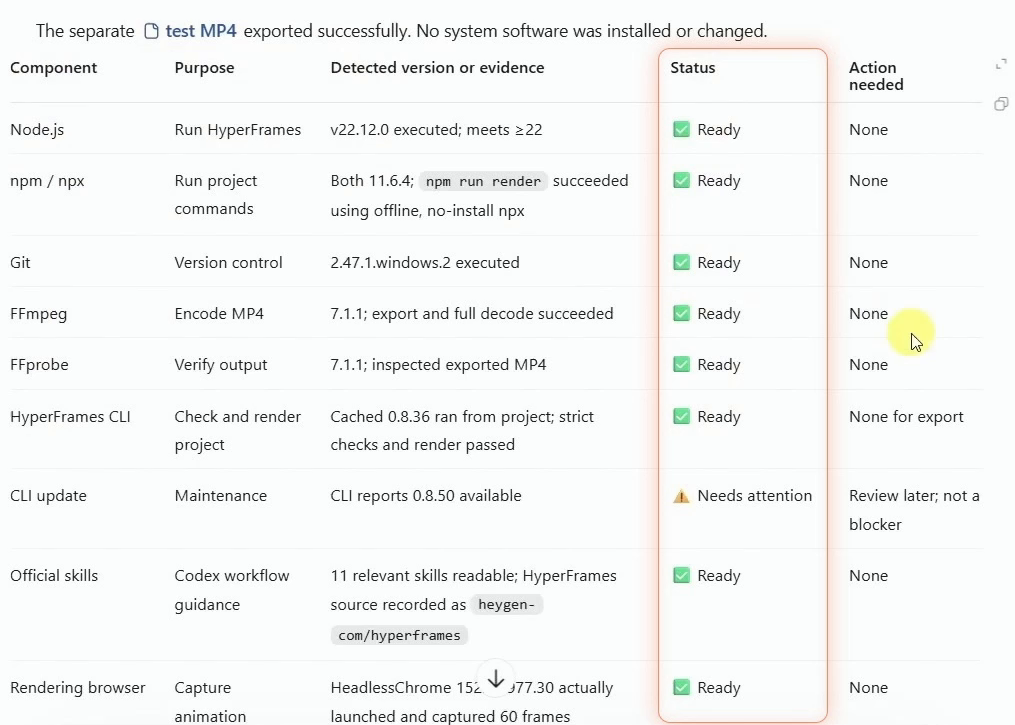
In the video, the verification response reports that the test MP4 exported successfully. It also flags an available CLI update for later review, explicitly as a non-blocker. For your own setup, look at the evidence and the action-needed column, not just the status markers. Optional voice services or Docker should not be treated as missing requirements for this silent local test. If a required check fails, use the recovery prompt below, then rerun the affected checks and test export.
Recovery prompt if a check fails
Resolve the required failures in the verification table, preserving working installations. Explain any permission or Windows administrator action I must take. Rerun the failed checks and the test export, then update the table with actual results.4 Turn the offer into a creative brief
Now give Codex enough information to make design decisions without guessing at the business message. The Morning Ritual brief specifies the audience, the exact copy, the canvas size, the colour palette, and how the fifteen seconds should be divided. It asks for original vector artwork in code and keeps the first version free of external images, voiceover, and music.
Notice how the timing serves the offer. The opening establishes the café, the middle gives the price room to be read, and the ending leaves a clear invitation on screen. Those details also give you something concrete to assess when the preview opens.
Creation prompt
Using the HyperFrames skill, create a polished 15-second motion graphic for a fictional café called Morning Ritual.

Audience: local customers. Purpose: promote a weekend coffee offer.

Format: 1920×1080, 16:9, 30 fps.

Style: warm cream background, espresso brown typography, burnt-orange accents, generous spacing, and playful but controlled movement.

Use original vector artwork made in code. No external images, paid services, voiceover, or music.

Story:

0–4 seconds: A takeaway coffee cup assembles from simple shapes. Steam rises. Reveal the brand name “Morning Ritual”.

4–10 seconds: Transition into the offer: “Your weekend starts here”, “Coffee + pastry”, and “$6”. Make the price prominent and give viewers time to read it.

10–15 seconds: Arrange the cup and a simple pastry illustration into a final brand card: “Drop in this weekend” and “Morning Ritual”. Hold the completed final card for at least 2 seconds.

Keep all text readable and inside safe margins. Coordinate the motion so elements feel connected rather than appearing randomly.

Make reasonable creative decisions and proceed with the build. Inspect representative frames, run available validation checks, and fix visible overlap or clipping.

Open the local preview and tell me where the editable project is saved. Wait for my feedback before exporting the final MP4.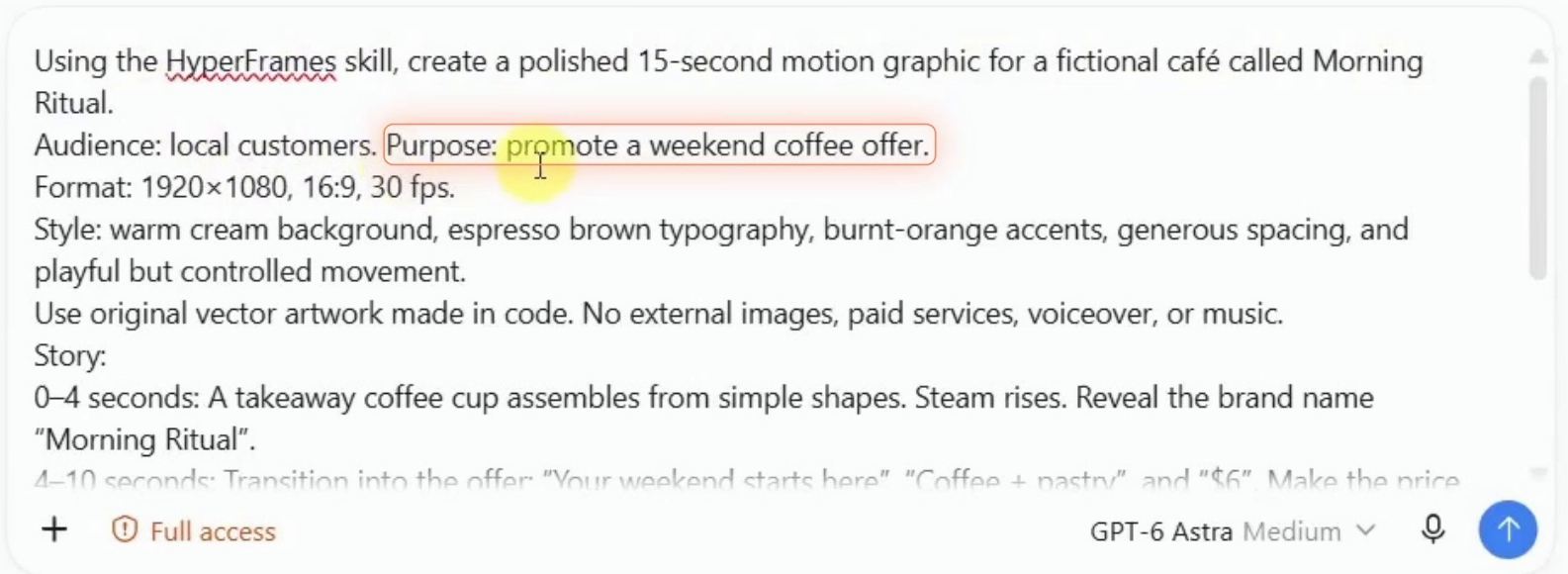
Let the build finish, then play the preview from beginning to end. Check the exact wording, the safe margins, and whether the offer settles long enough to read. A still frame helps you assess the layout, but only playback tells you whether the pacing works. Save the editable project location when Codex provides it.
5 Give precise feedback on the preview
A useful revision describes the visible problem and protects the parts that already work. For this promotion, the revision prompt enlarges the $6 price, asks for three seconds of settled reading time, and softens the last transition while preserving the branding and fifteen-second duration. It also introduces background music, changing the deliberately silent first brief.
Revision prompt
Refine this animation:

Make the $6 price about 25% larger.

Give the offer a full 3 seconds of settled, readable screen time.

Make the final transition gentler.

Keep the completed final card visible for at least 2 seconds.

Add subtle, upbeat background music that matches the pacing and style of the motion graphic. Keep it clean and professional, with a short fade-in at the beginning and fade-out at the end.

Preserve the brand colours, exact wording, existing visual style, and total 15-second duration.

Do not change anything else unnecessarily.

Recheck the layout, timing, transitions, and audio balance, then open the updated preview.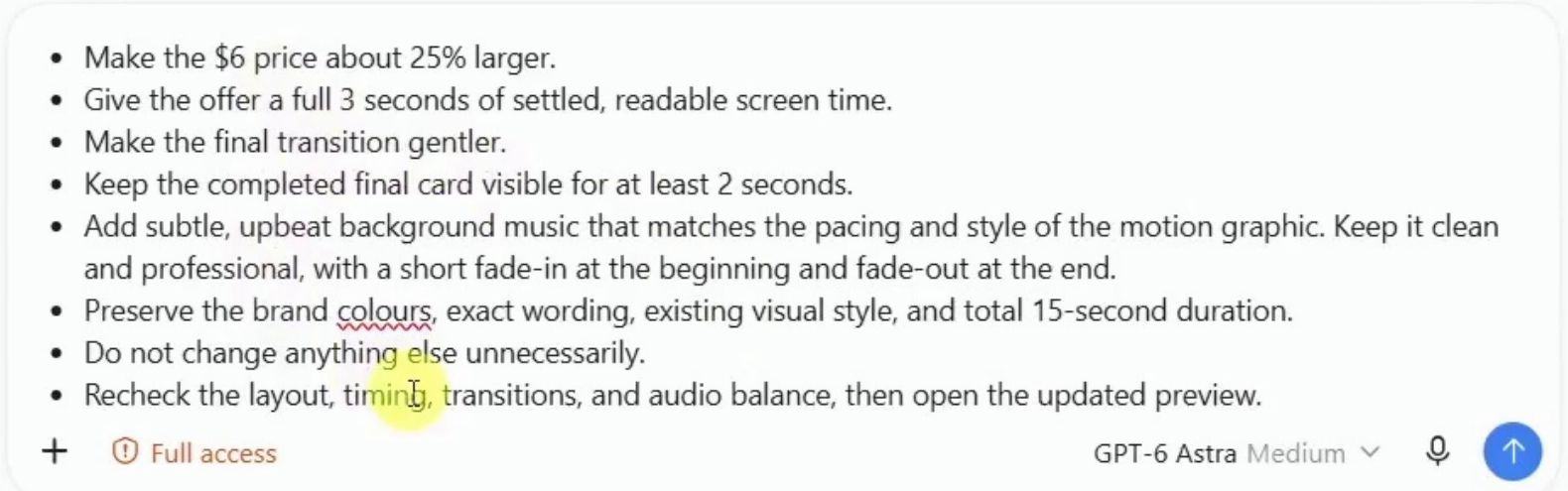
For your own project, make the changes that your preview actually needs. If the price is already clear, there is no reason to enlarge it mechanically. If you want a silent promotion, leave out the music request and the audio-balance check. When you do add audio, decide on the source and permitted use before publishing. Review the updated animation again rather than assuming the requested changes all landed correctly.
6 Export the approved animation and inspect the file
The browser preview is where you judge the animation; the exported MP4 is the file you will use elsewhere. Once you are satisfied with the preview, ask Codex to render it and report the actual file properties. The prompt specifies H.264, 1920×1080, 30 frames per second, and a duration of fifteen seconds.
Export prompt
Export the approved Morning Ritual animation as an H.264 MP4: 1920×1080, 30 fps, exactly 15 seconds.

Run the project’s validation checks and resolve blocking errors. Render the final MP4 into the project’s outputs folder.

Use FFprobe to verify the codec, resolution, frame rate, and duration. Report the results in a small table.

Provide a clickable link to the MP4 and show or open it for playback. Also provide the editable project location.

If export fails, report the actual error and fix it where possible.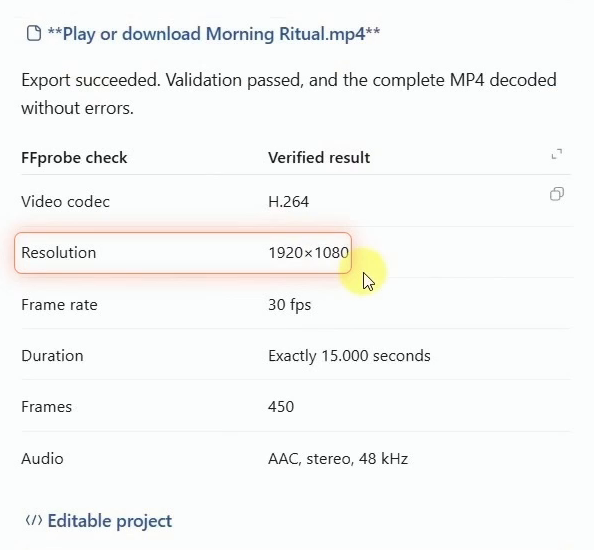
Open the MP4 itself and watch it through. Confirm that it starts and ends cleanly, the offer stays readable, and any audio plays as expected. Compare the file-check table with your requested settings. If export fails, keep the actual error in the conversation so Codex can address the cause without unnecessarily replacing working tools or changing the design.
Troubleshoot the stage that failed
The current documentation adds a useful distinction to the tutorial: use doctor to inspect the machine and dependencies, and lint or check to inspect the project. Ask Codex to use snapshot when the problem is visual. A healthy computer does not establish that the animation is laid out correctly. These checks serve different purposes in the HyperFrames troubleshooting guide.
If the MP4 looks different from the preview, ask Codex to check font loading, remote media, and browser-specific effects against the exported file. When an image or audio file disappears, verify its local path and filename first; remote assets can also fail because of access restrictions. During slower iterations, preview snapshots or a draft-quality render can reveal problems before another full export. These are troubleshooting options from the current documentation, not additional steps demonstrated in the video. (HyperFrames help)
For new project checks, use the current command name check. The older validate, inspect, and layout names are deprecated aliases in the CLI reference. You can ask Codex to handle the commands while you stay focused on the visible result.
7 Reuse the project for your own business
Replace Morning Ritual with your business name, swap the offer and colours, and give the final card a useful next action. A salon appointment offer, a workshop date, or a product announcement can use the same short narrative structure. Start with one message; adding more copy usually means giving it more time rather than making it smaller.
The video also creates and plays a separate vertical version. This is useful when your next destination needs a portrait frame: ask for a new composition so the cup, offer, and brand card can be rearranged around the taller canvas, rather than stretching the horizontal export.
Vertical version prompt
Create a separate 1080×1920 vertical version of this promotion. Rearrange the composition for the vertical frame rather than stretching or cropping the horizontal version.

Keep the same branding, wording, and 15-second duration. Preview it and check text readability before exporting.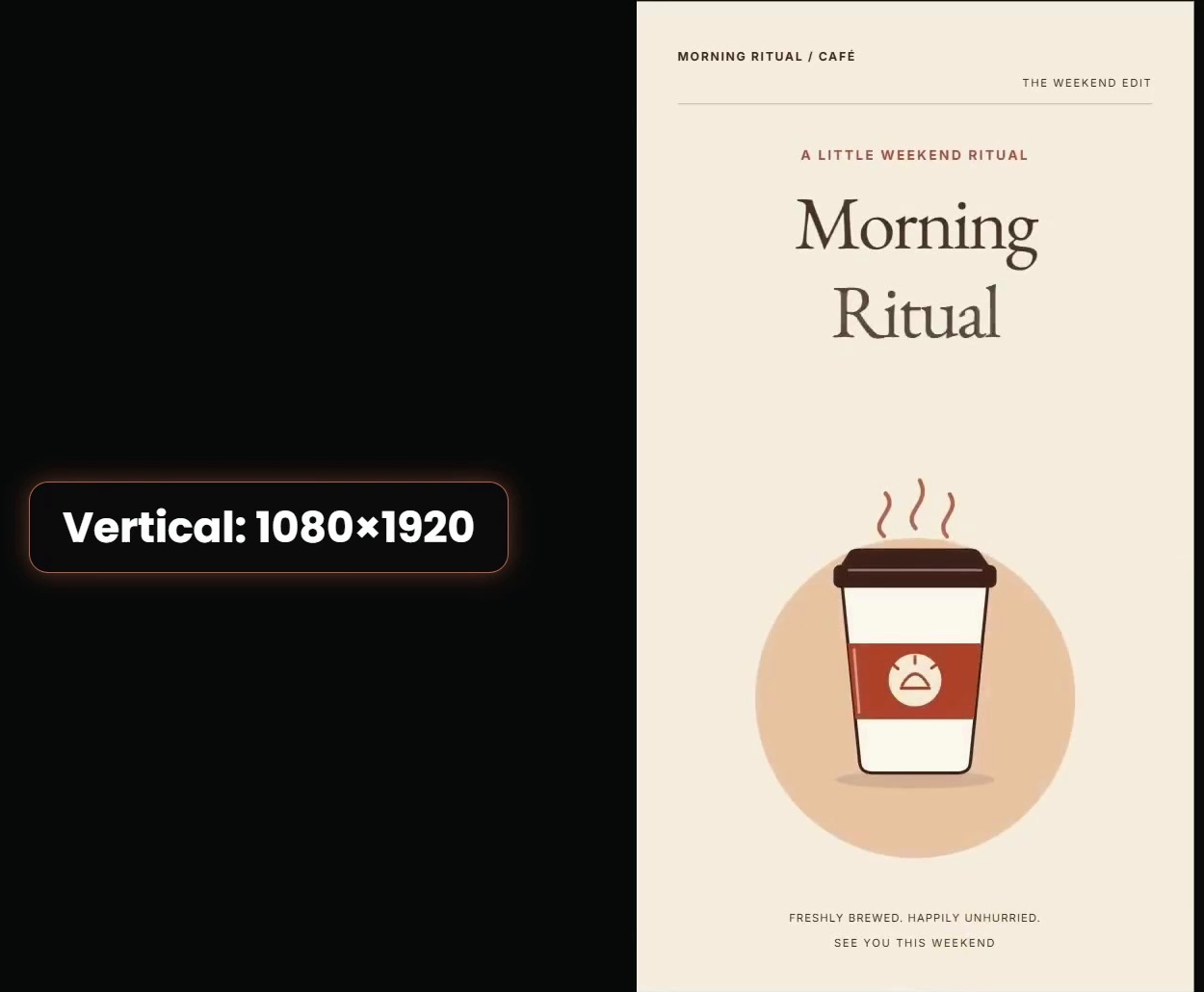
The reusable part of this workflow is the combination of a clear brief and a checked project. Establish that the tools can render, review the message in motion, request focused changes, and inspect the exported file. Once those pieces are in place, updating the promotion becomes much easier than starting from a blank timeline.